Building secure applications requires authentication (who users are) and authorization (what they can do). While Firebase makes handling authentication and data storage pretty easy, it falls short when implementing complex permission systems like role-based access control (RBAC) and relationship-based access control (ReBAC).
In this guide, we'll combine:
- Firebase Authentication and Firestore for user identity and data management.
- Multi-tenancy principles create an application where multiple organizations share the same instance while keeping their data separate.
- Permit.io for Fine-Grained Authorization, enforcing access based on roles, relationships, and other conditions. This allows for fine-grained control over what users can view, create, update, or delete—ensuring they interact only with the data they have explicit permissions for - something that Firebase's security rules struggle to handle well.
- Next.js for building a modern, responsive frontend with server-side rendering and API routes.
We’ll combine these technologies to build a task management app where users can create and join multiple organizations and access tasks within the organizations they belong to.
By utilizing the aforementioned tools, we’ll build a more maintainable and secure application with secure authorization that would be difficult to implement in Firebase alone.
Overview of technologies
Firebase & Firestore
Firebase is a Google-built backend-as-a-service (BaaS) platform that provides a suite of cloud-based tools, including real-time databases, cloud storage, and authentication, for building applications.
Firestore is a No-SQL cloud database provided by Firebase that enables real-time data storage, query, and synchronization with seamless integration with Firebase Authentication.
Permit.io
Permit.io is a full-stack authorization platform that simplifies access control implementation. It allows developers to enforce role-based, attribute-based, and relationship-based access control methods with minimal configuration.
What We’re Going to Build
In this guide, we’ll build a task management app where users can sign in with Google, create organizations, invite members, and manage tasks. The app enforces structured access control to ensure users can only interact with tasks according to their roles and relationships.
Features
- Google Authentication via Firebase.
- Multi-Tenancy will allow multiple organizations to exist in a single instance while keeping their data isolated.
- Task Management with assignments and status updates.
- Advanced Access Control using RBAC and ReBAC.
Access Control Policies
We’ll implement both Role-Based and Relationship-Based Access Control:
• Org Admins (Owners) → Full control over all tasks in the organization.
• Task Creators → Full control over their own tasks.
• Task Assignees → Can read and update assigned tasks.
• Org Members → Can view all tasks within their organization.
Application Flow
Users sign in and create an organization.
They invite members and assign roles.
Users create tasks and assign them to team members.
Assignees can update tasks, but only admins and creators have full control.
All organization members can view tasks within that organization.
Why Relationship-Based Access Control (ReBAC)?
ReBAC is a policy model focused on the way resources and identities (aka users) are connected to each other and between themselves. It allows us to define permissions based on relationships between users and resources. In our app:
- Org Admins will derive the role of the Task Admin and automatically have full control over all tasks within their organization.
- Org Members will derive the role of a Task Viewer and can view all tasks within their organization, even if they are not directly assigned.
Project Structure Overview
tasks-app/
├── app/                    # Next.js app directory (App Router)
├── components/            # React components
│   ├── Task/             # Task-related components
│   ├── Member/           # Member management components
│   ├── Org/             # Organization components
│   └── Site/             # Site-wide components
├── utils/                # Utility functions
│   ├── firebase/        # Firebase-specific utilities
│   └── task/            # Task-related utilities
└── types/               # TypeScript type definitions
Prerequisites
Before we dive into the practical section of the tutorial, here are a few things we should have ready to follow along:
- A code editor of your choice - VSCode, Cursor
- Basic knowledge of JavaScript, React, and Next.js
- Node.js installed; I’ll be using v20.11.0
- A Permit.io account
- A Firebase account
Setting Up Firebase Authentication
To set up authentication with Firebase, we’ll first have to create a Firebase project and define our authentication methods.
Creating a Firebase project
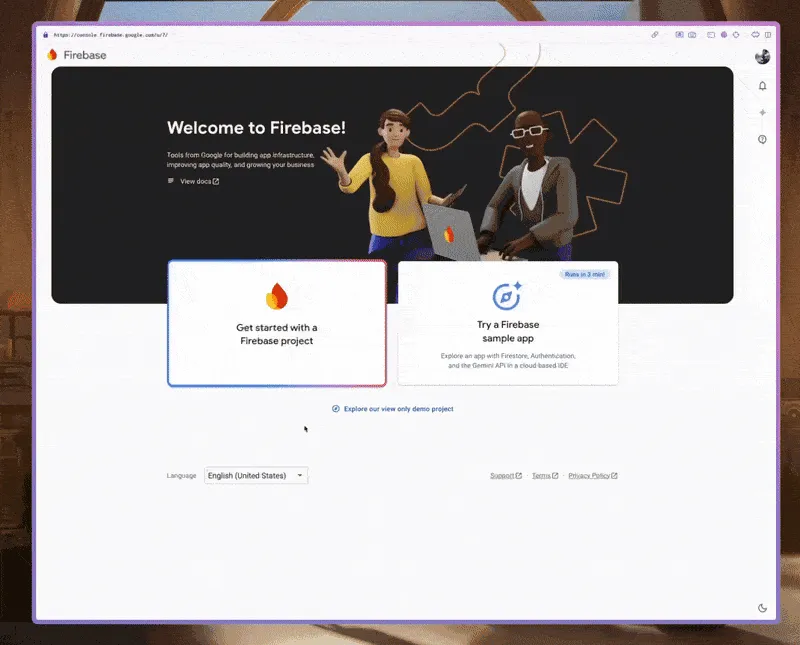
To create a Firebase project,
- Go to https://console.firebase.google.com/ and create an account if you haven’t already.
- Once you’re in, you should be redirected to the console where you can create a new Firebase project.
- Click on Get Started with a Firebase project to create a new project
- Enter the name of your project, I’ll name mine “tasks-project” in this example and a project ID will automatically be generated.
- Follow the remaining prompts until you reach the stage where the project is ready.
- Once you click on Continue, you should be taken to the project overview page.
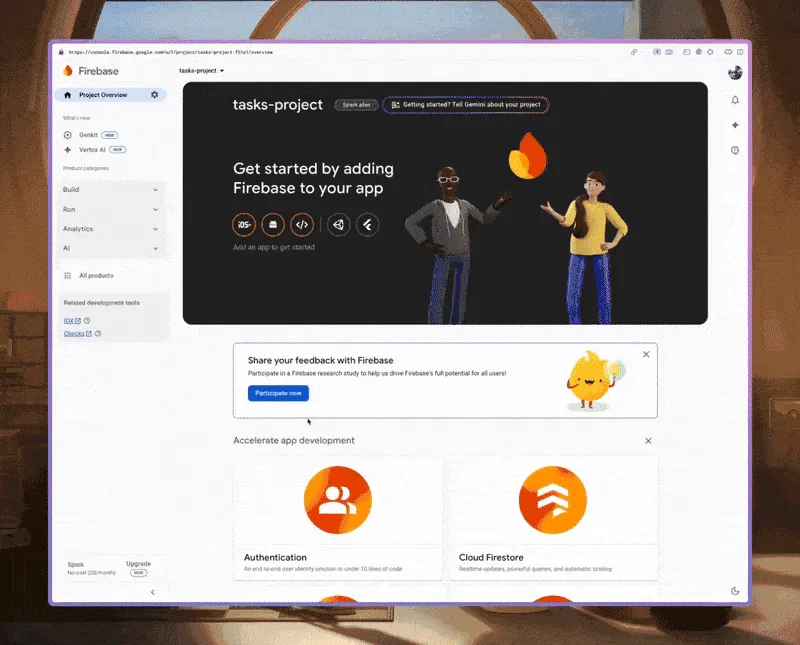
Next, let’s set up our web app to obtain our API Key and App ID:
- In the project overview page, click on the web icon (
</>) to create a new web project.
- In the next step, to add Firebase to your app, follow the prompts to provide the name of your app.
- Click on Register app, and you’ll be provided a code snippet containing your API Key, and App ID to add Firebase to your app. Copy this out and keep it handy, we’ll need it in the coming steps.
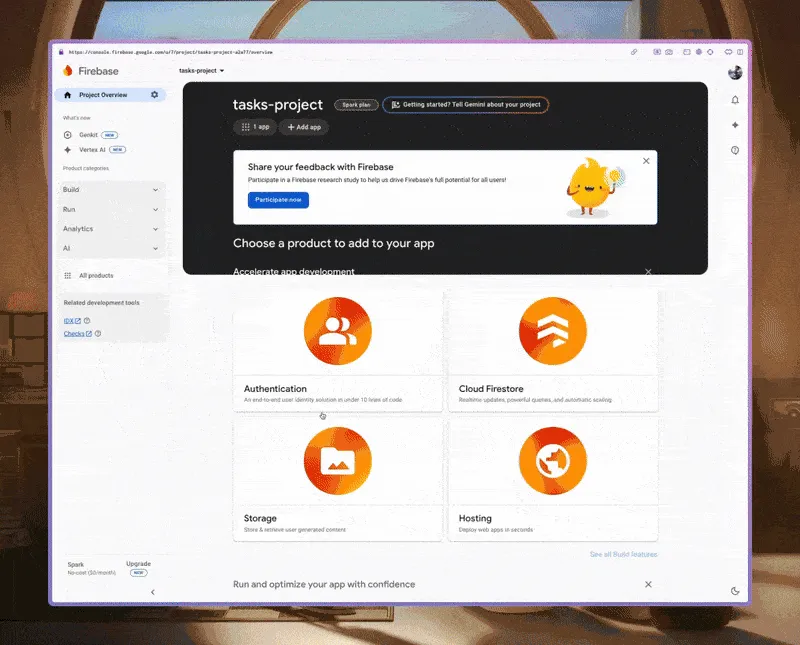
Adding Google Authentication
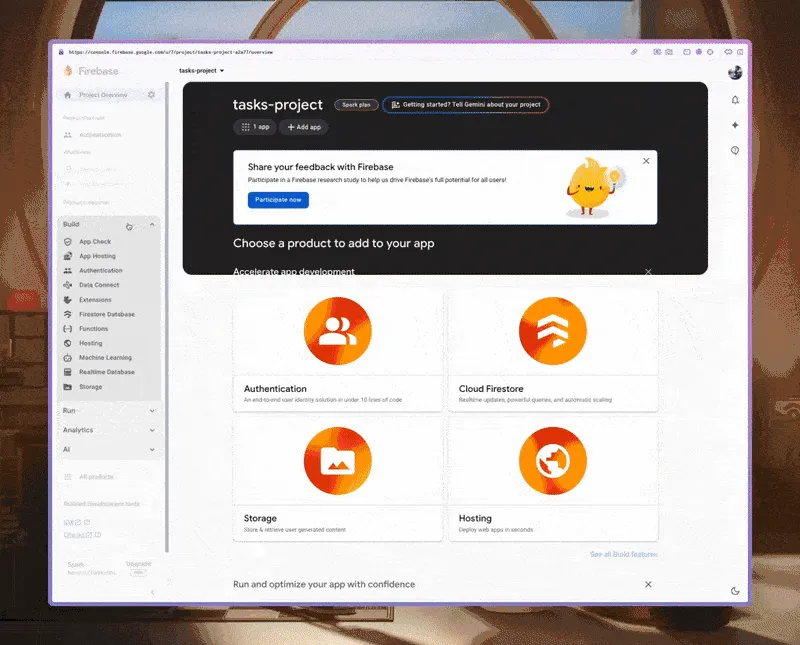
Next, we’ll enable Google Auth for our app by navigating to Authentication Providers in our Firebase project. In the left sidebar, click Build > Authentication.
- Navigate to Authentication by clicking on the Authentication card on the project home page or, in the left sidebar, click Build > Authentication.
- Then, to select Google, click on the Sign-in method tab and select Google under Additional Providers.
- Finally, choose a name for your project that everyone will see! I’ll keep mine the same for now. Just give it a click on Save when you’re ready!
Set Up Firestore
We’ll use Firestore to store user and organization data for our application.
- To set it up, navigate to the Firestore Database page by clicking on Build > Firestore Database.
- Now, click on Create database
- Choose the location where your data will be stored, and click on Next.
- Choose Start in Production mode to set up the basic security rules and click on Create.
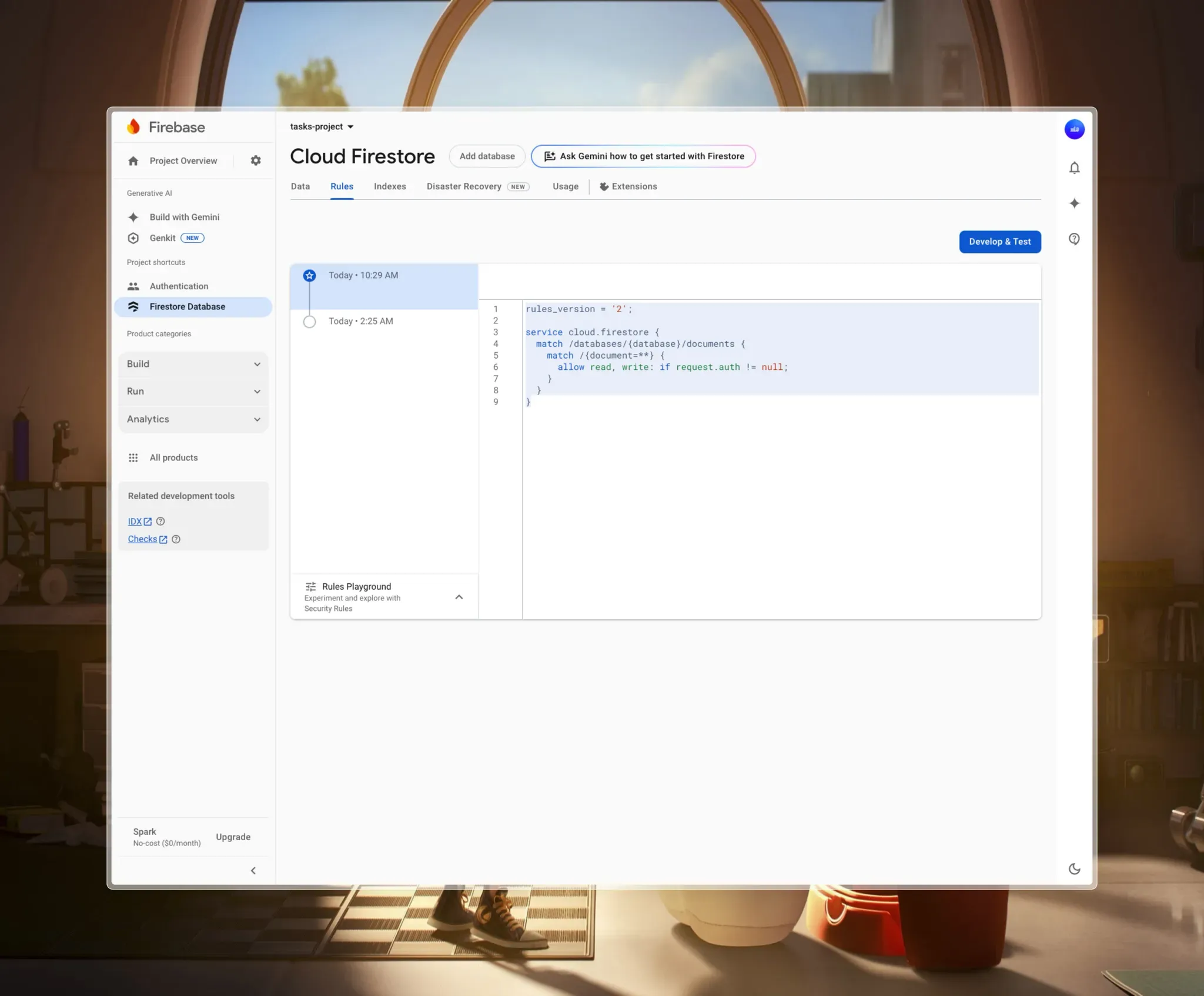
Once your database has been created, navigate to the Rules tab and replace the current rule with this in order to allow only authenticated users to access the data.
rules_version = '2';

service cloud.firestore {
  match /databases/{database}/documents {
    match /{document=**} {
      allow read, write: if request.auth != null;
    }
  }
}
With that, you should have something like this:
Installing and configuring Firebase in a Next.js application
To speed things up a bit, I’ve created a simple starter project with a few packages installed, including:
Clone the project to your machine in any folder of your choice by running the following command:
git clone <https://github.com/miracleonyenma/tasks-app>
Navigate to the cloned project and install all dependencies:
cd tasks-app
npm install
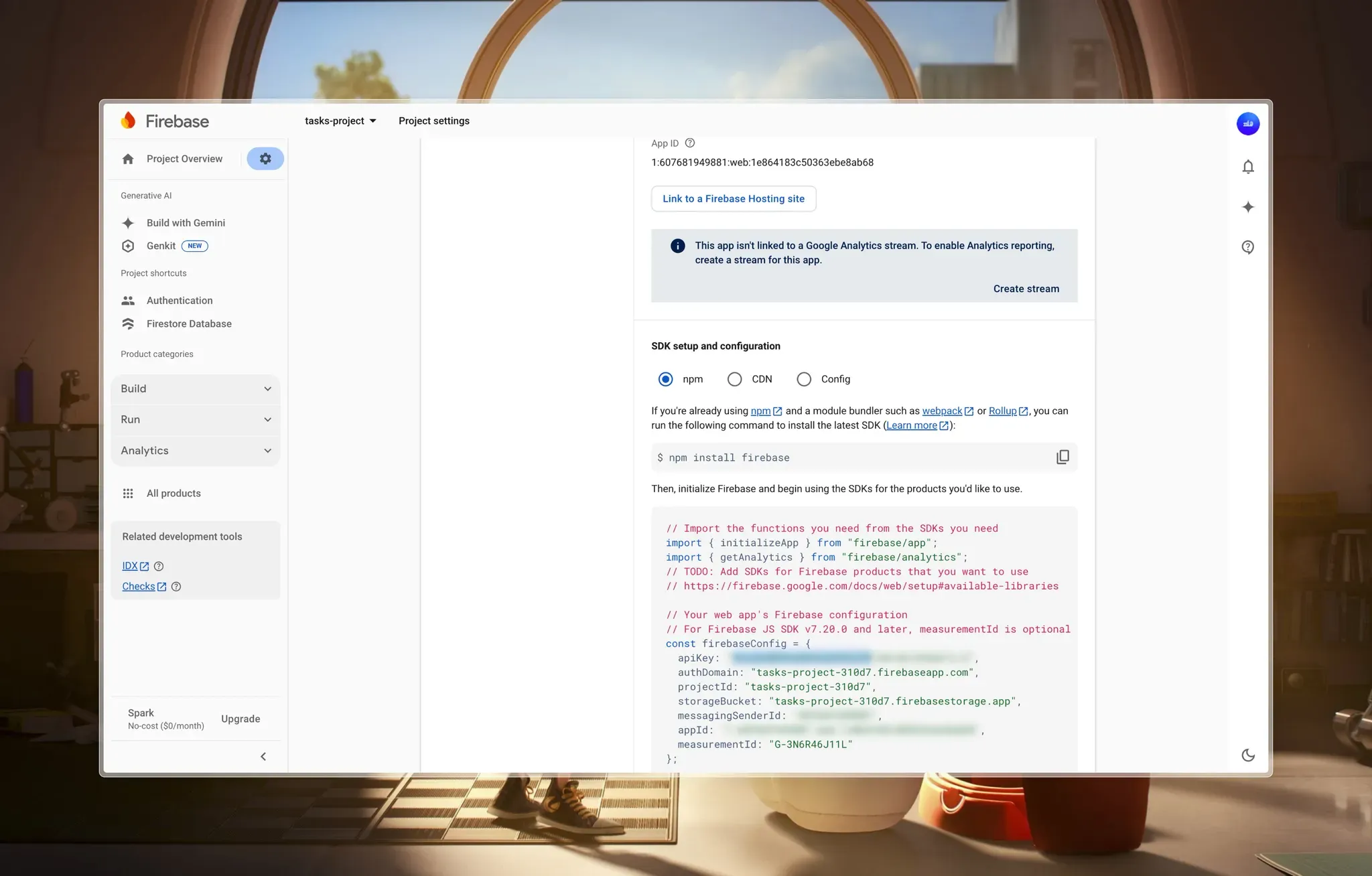
Next, create a .env file and provide the values for the following variables from your Firebase project:
# .env
NEXT_PUBLIC_FIREBASE_API_KEY=...
NEXT_PUBLIC_FIREBASE_AUTH_DOMAIN=...
NEXT_PUBLIC_FIREBASE_PROJECT_ID=...
NEXT_PUBLIC_FIREBASE_STRORAGE_BUCKET=...
NEXT_PUBLIC_FIREBASE_MESSAGING_SENDER_ID=...
NEXT_PUBLIC_FIREBASE_APP_ID=...
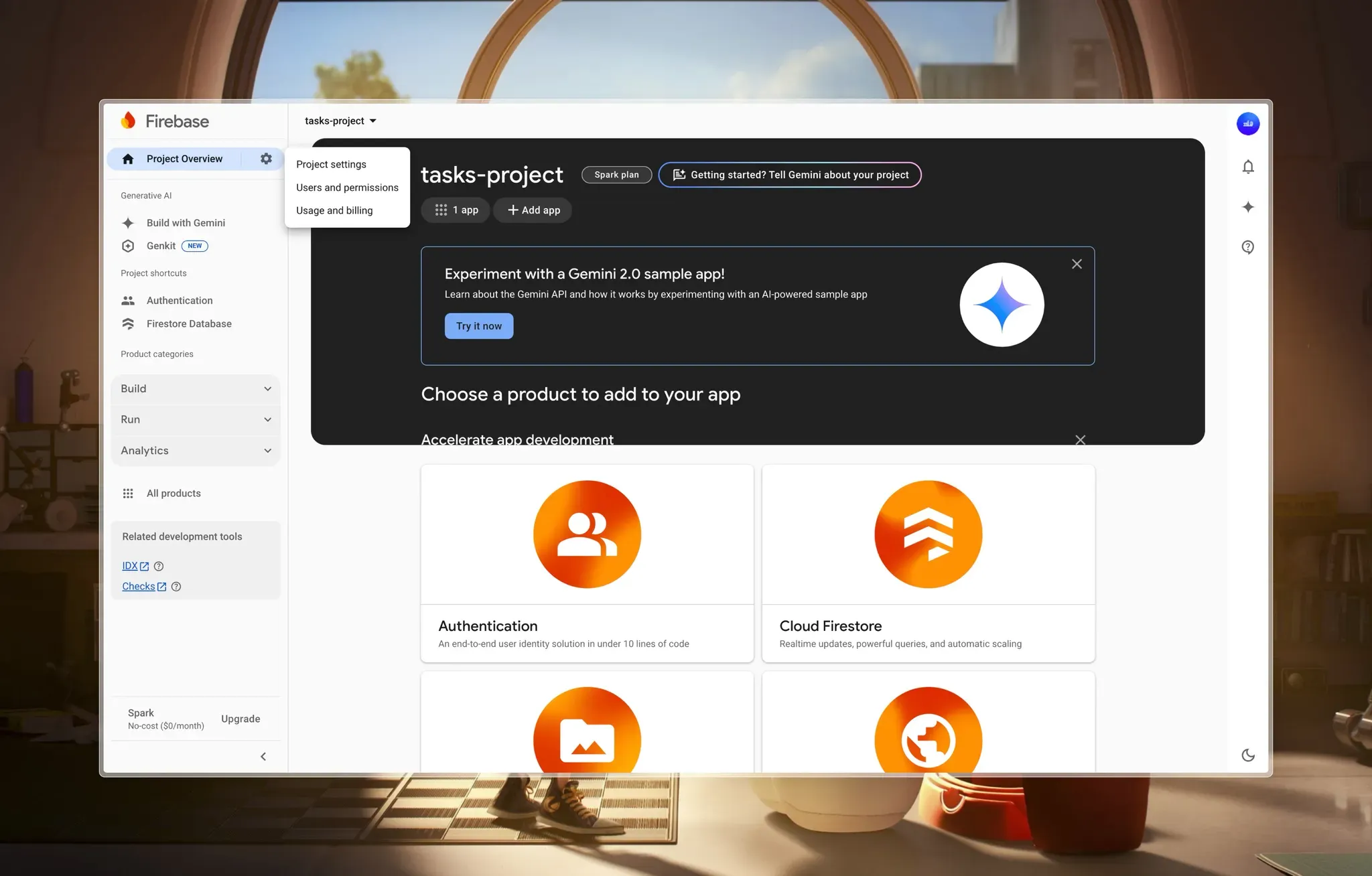
You can get the values from the Project Settings page. Click on the Settings icon next to the Project Overview button at the top of the sidebar, then click on Project Settings.
Scroll down to the Your Apps section, and you should see the SDK setup and configuration, where you can find all the details you need.
Let’s look at a few key files before we proceed.
Firebase config File
If you cloned the starter project, you should see the ./firebase.ts file at the root of the project. If you didn’t, you should create one with the following content:
// ./firebase.ts
// Import the functions you need from the SDKs you need
import { initializeApp } from "firebase/app";
import {
  browserLocalPersistence,
  getAuth,
  setPersistence,
} from "firebase/auth";
import { getFirestore } from "firebase/firestore";
// Your web app's Firebase configuration
// For Firebase JS SDK v7.20.0 and later, measurementId is optional
const firebaseConfig = {
  apiKey: process.env.NEXT_PUBLIC_FIREBASE_API_KEY,
  authDomain: process.env.NEXT_PUBLIC_FIREBASE_AUTH_DOMAIN,
  projectId: process.env.NEXT_PUBLIC_FIREBASE_PROJECT_ID,
  storageBucket: process.env.NEXT_PUBLIC_FIREBASE_STORAGE_BUCKET,
  messagingSenderId: process.env.NEXT_PUBLIC_FIREBASE_MESSAGING_SENDER_ID,
  appId: process.env.NEXT_PUBLIC_FIREBASE_APP_ID,
  measurementId: process.env.NEXT_PUBLIC_FIREBASE_MEASUREMENT_ID,
};
// TODO: Add SDKs for Firebase products that you want to use
// <https://firebase.google.com/docs/web/setup#available-libraries>
// Initialize Firebase
const app = initializeApp(firebaseConfig);
const db = getFirestore(app);
const auth = getAuth(app);
// Set persistence to localStorage
setPersistence(auth, browserLocalPersistence)
  .then(() => {
    console.log("Firebase persistence set to localStorage");
  })
  .catch((error) => {
    console.error("Error setting Firebase persistence to localStorage:", error);
  });
export { app, db, auth };
This file initializes Firebase in our app, setting up authentication and Firestore (database) using environment variables for configuration. It also ensures that the authentication state persists in localStorage, so users remain signed in even after refreshing the page.
Site Header Component
Another file ./components/Site/Header.tsx should contain the following code:
// ./components/Site/Header.tsx
"use client";
import { auth } from "@/firebase";
import { GoogleAuthProvider, signInWithPopup } from "firebase/auth";
import { useAuthState } from "react-firebase-hooks/auth";
import Loader from "@/components/Loader";
import createUser from "@/utils/firebase/user/createUser";
import Link from "next/link";
import Image from "next/image";
import { useRouter } from "next/navigation";
const SiteHeader = () => {
  const router = useRouter();
  const [user, loading] = useAuthState(auth);
  const googleSignIn = async () => {
    const provider = new GoogleAuthProvider();
    try {
      await signInWithPopup(auth, provider).then(async (result) => {
        await createUser(result);
      });
    } catch (error) {
      console.log(error);
    }
  };
  return (
    <header className="site-header">
      <div className="wrapper">
        <Link href="/">
          <h1 className="font-bold">Tasks App</h1>
        </Link>
        {user ? (
          <div className="user-btn ">
            <figure className="img-cont">
              <Image
                src={user.photoURL || "/images/avatar.png"}
                alt="avatar"
                width={32}
                height={32}
                className=""
              />
            </figure>
            <button
              className="btn primary sm"
              onClick={() => {
                auth.signOut();
                router.refresh();
              }}
            >
              Sign Out
            </button>
          </div>
        ) : loading ? (
          <Loader loading={loading} className="h-8 w-8" />
        ) : (
          <button className="btn primary sm" onClick={() => googleSignIn()}>
            Sign In
          </button>
        )}
      </div>
    </header>
  );
};
export default SiteHeader;
Here we handle user authentication with Firebase. The component uses useAuthState from react-firebase-hooks to track authentication status, displaying different UI elements based on the user’s state. If a user is signed in, it shows a welcome message with their display name and a “Sign Out” button.
If authentication is still loading, a Loader component is displayed.
Otherwise, an unauthenticated user sees a “Sign In” button, which triggers the googleSignIn function to authenticate using Firebase’s signInWithPopup. This setup ensures a smooth authentication experience within the app’s header.
Now, run the project using the command:
npm run dev
I’ve provided a simplified overview of the starter project application in the project README.md on GitHub.
Going through the code, we’ll notice that the components have similar features:
- Most components use Firebase Authentication for user state
- Forms use Formik for form management and Yup for validation
- Real-time updates using Firebase listeners
- Toast notifications for user feedback
Now that we’ve quickly gone through our project structure, let’s see the current state of the app:

Live Preview
Structuring Firestore Collections for Permit.io Integration
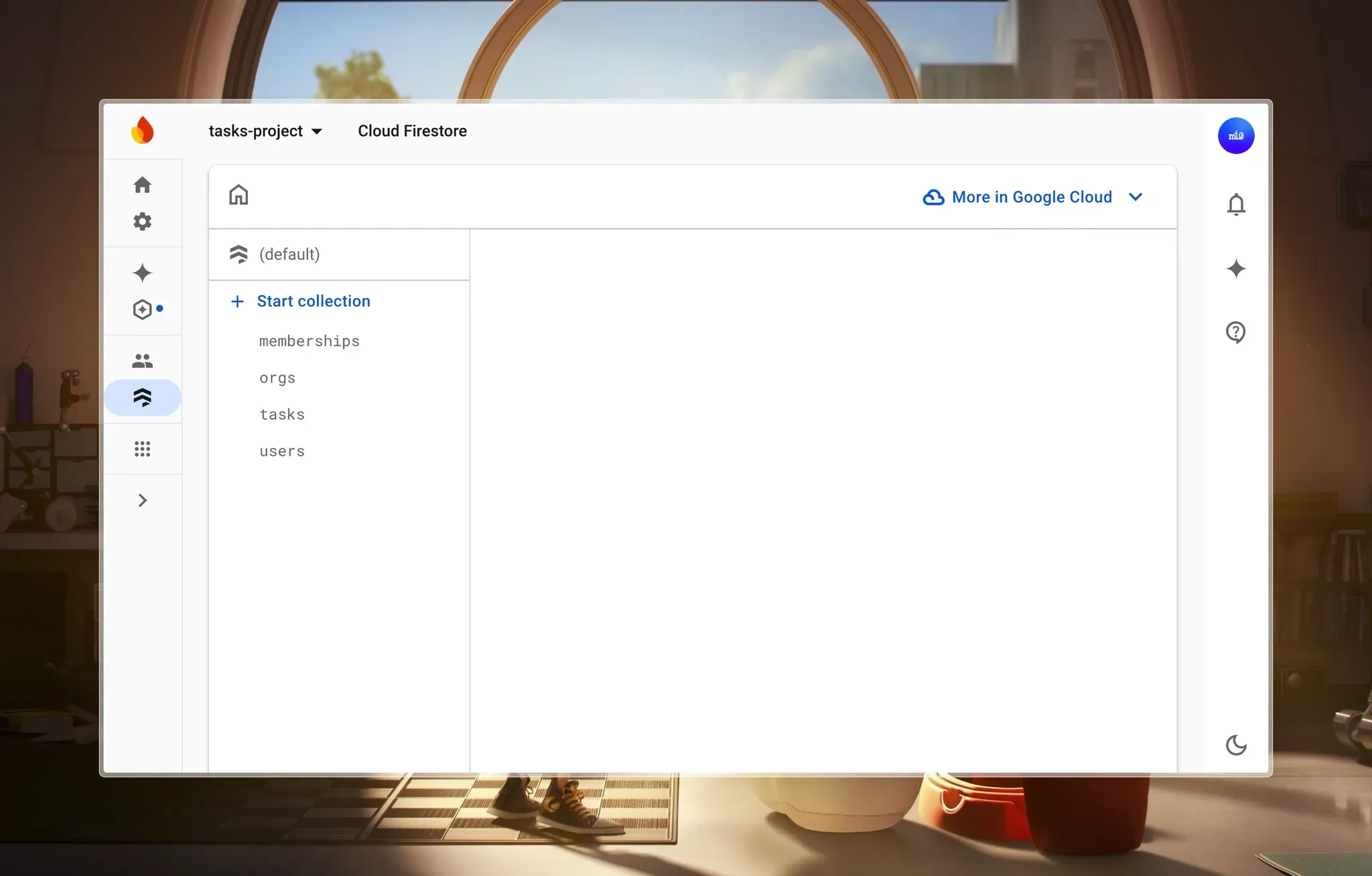
Let’s look at the database structure, which should align with our permission model. Here's how we'll organize our collections to integrate with Permit.io's relationship-based access control:
- Creating a Users Collection, where each user is created during sign-up.
- Defining an Organization's Collection to manage different tenants.
- Defining a Memberships Collection to manage user-organization relationships. A membership is created when a user is added to an organization.
- Defining a Tasks Collection, where each task belongs to a specific organization.
Here are the utility functions that handle the creation of these collections:
Create User Utility
In ./utils/user/createUser.ts, we get user information and check if it already exists. If it doesn’t, we create and add it to the “users” collection. With Firestore, if the collection does not already exist, it creates it with the key provided (“users” in this case) and adds the document to it.
// ./utils/firebase/user/createUser.ts
// ...
const createUser = async (userCredential: UserCredential) => {
  try {
    // ...
    const { uid, displayName, email, photoURL } = userCredential.user;
    // Create a reference to the *user* document in Firestore
    const userRef = doc(db, "users", uid);
    // Check if user already exists in Firestore
    const userSnap = await getDoc(userRef);
    if (!userSnap.exists()) {
      // Create new user record with server timestamp
      // ...
    } else {
      // ...
    }
  } catch (error) {
    // ...
  }
};
export default createUser;
Create Organization Utility
In ./utils/firebase/org/createOrg.ts, we check if an organization already exists in Firestore. If it doesn’t, we create a new document in the “orgs” collection with the provided name. Firestore automatically creates the collection if it doesn’t exist. The organization document includes timestamps for creation and updates.
// ./utils/firebase/org/createOrg.ts
// …
const createOrg = async (name: string) => {
  try {
    // …
    const orgRef = doc(db, “orgs”, name);
    // Check if organization already exists
    const orgSnap = await getDoc(orgRef);
    if (!orgSnap.exists()) {
      // Create new organization record with server timestamp
      // …
    } else {
    // …
    }
  } catch (error) {
    // …
  }
};
export default createOrg;
Create Membership Utility
In ./utils/firebase/membership/createMember.ts, we check if a membership already exists for a given user in an organization. If it doesn’t, we verify that both the user and organization exist before creating a new membership record in the “memberships” collection. The membership document includes timestamps for invitations and activations.
// ./utils/firebase/membership/createMember.ts
// ...
const createMember = async (membershipInput: MembershipInput) => {
  try {
    // ...
    const { orgId, userId, status, invitedBy } = membershipInput;
    const membershipId = `${orgId}_${userId}`;
    const membershipRef = doc(db, "memberships", membershipId);

    // Check if membership already exists
    const membershipSnap = await getDoc(membershipRef);
    if (membershipSnap.exists()) {
      // ...
    }
    // Verify user and organization exist
    // ...

    // Create membership data with timestamps
    // ...
  } catch (error) {
    // ...
  }
};

export default createMember;
Create a Task Utility
In ./utils/firebase/task/createTask.ts, we validate the task input, generate a Firestore document with an auto-generated ID, include timestamps while handling type conflicts, and create a task record in the “tasks” collection. The task also maintains a participant array for efficient querying.
// ./utils/firebase/task/createTask.ts
// ...

const createTask = async (taskInput: TaskInput) => {
  try {
    // Validate required task data
    // ...

    // Create task document reference
    const taskRef = doc(collection(db, "tasks"));

    // Prepare task data with participants
    const participants = [taskInput.createdBy];
    if (taskInput.assignedTo !== taskInput.createdBy) {
      participants.push(taskInput.assignedTo);
    }

    // Task data including timestamps
    const taskWithTimestamps = {
      id: taskRef.id,
      name: taskInput.name,
      description: taskInput.description,
      priority: taskInput.priority || "low",
      status: taskInput.status || "todo",
      assignedTo: taskInput.assignedTo,
      createdBy: taskInput.createdBy,
      orgId: taskInput.orgId,
      participants,
      dueDate: taskInput.dueDate || null,
      createdAt: serverTimestamp(),
      updatedAt: serverTimestamp(),
    };

    // Store task in Firestore
    await setDoc(taskRef, taskWithTimestamps);

    return {
      success: true,
      message: "Task created successfully",
      taskId: taskRef.id,
      task: { name: taskInput.name },
    };
  } catch (error) {
    // Handle errors
  }
};

export default createTask;
This should give us this basic structure in our Firestore:
Why Firebase's Built-In Security Rules Aren't Enough
Firebase Security Rules provide a powerful way to secure your Firestore data. Still, they come with significant limitations when handling roles, especially in multi-tenant applications like our Tasks Management system. Let’s examine some example security rules before discussing their limitations.
Example Firebase Security Rules
rules_version = '2';
service cloud.firestore {
  match /databases/{database}/documents {
    // Basic user authentication check
    function isAuthenticated() {
      return request.auth != null;
    }

    // Check if user is a member of an organization
    function isMemberOfOrg(orgId) {
      return exists(/databases/$(database)/documents/memberships/$(request.auth.uid)_$(orgId));
    }

    // Check if user has admin role in organization
    function isOrgAdmin(orgId) {
      return get(/databases/$(database)/documents/memberships/$(request.auth.uid)_$(orgId)).data.role == "admin";
    }

    // Organization rules
    match /organizations/{orgId} {
      // Only members can read org data
      allow read: if isMemberOfOrg(orgId);
      // Only admins can update org data
      allow write: if isOrgAdmin(orgId);

      // Task rules nested within organizations
      match /tasks/{taskId} {
        // Members can read tasks
        allow read: if isMemberOfOrg(orgId);

        // Task creators or assignees can update tasks
        allow update: if isOrgAdmin(orgId) ||
                        resource.data.createdBy == request.auth.uid ||
                        resource.data.assignedTo == request.auth.uid;

        // Only admins or task creators can delete tasks
        allow delete: if isOrgAdmin(orgId) || resource.data.createdBy == request.auth.uid;

        // Any org member can create tasks
        allow create: if isMemberOfOrg(orgId) &&
                        request.resource.data.createdBy == request.auth.uid;
      }

      // Member management rules
      match /members/{memberId} {
        // Members can read other members
        allow read: if isMemberOfOrg(orgId);

        // Only admins can add or remove members
        allow write: if isOrgAdmin(orgId);
      }
    }
  }
}
While this set of rules might seem comprehensive, it quickly reveals several significant limitations when applied to our multi-tenant Tasks Management application:
Gets Complex in Multi-tenant Applications
- Even with just a few roles, rules quickly become complicated, as we can see above
- You need separate rules for each role and permission combination
- Contextual permissions (like editing only assigned tasks) are hard to express
- Cross-collection permission checks are verbose and messy
No Reusable Security Rules
- Helper functions like the ones in our
./utils folder in our Next.js folder help, but they’re limited in what they can do
- You can’t define a permission policy once and use it across collections
- No central place to manage all your permission definitions
- When policies change, you need to update rules in multiple places
Hard to Maintain at Scale
- Rule files become long and difficult to understand
- Testing complex rule scenarios is challenging
- Finding and fixing permission bugs is time-consuming
- Changes require careful review to avoid security holes
Permit.io Fine-Grained Authorization
As we can see, Firebase Security Rules lack considerable flexibility when it comes to fine-grained permissions. To solve this problem and simplify access control, we need:
- RBAC (Role-Based Access Control): Grants access based on user roles (e.g., admin, member).
- ReBAC (Relationship-Based Access Control): Grants access based on relationships (e.g., task assignee, team member).
RBAC simplifies role-based permissions and ReBAC enables dynamic, context-aware access control. With these, we can reduce complexity and improve maintainability.
Firebase does not provide built-in support for RBAC or ReBAC, but Permit.io enables a structured approach to access control:
- Central Permission Management: Define all permissions in one place
- Flexible Roles: Create complex role structures that Firebase can’t handle
- Policy as Code: Use a more powerful language for permission rules
- Multi-tenant Support: Built specifically for SaaS applications
- Audit Logs: Track permission checks and know why they passed or failed
- Clean Separation: Keep authorization logic separate from database rules
By using Permit.io with Firebase, you can keep your database rules simple while handling complex permissions with the right tool for the job.
Implementing RBAC and ReBAC with Permit.io
First, let's map out the authorization model of our task management application:
Our Task Management Application Structure
We're building a task management application where:
- Users can belong to multiple organizations
- Organizations can contain multiple tasks
- Different users have different levels of access within each organization
- Task access is determined by both direct assignment and organizational hierarchy
Resources and Actions
A resource is the target object we want to authorize access to. We’ll create two resources:
- Organization Resource: This represents our organization that users can create and belong to.
- Task Resource: Tasks belong to organizations in a parent-child relationship
Actions are the specific operations that can be performed on that resource.
- For Organization:
create, read, update, delete
- For Task:
create, read, update, delete
Resource Roles
A resource role represents an access level (or a set of permissions) that can be granted on instances of a specific resource type.
- Organization Roles
admin: Full control over the organization and derived access to its tasksmember: Can view the organization and its tasks (limited access)
- Task Roles
admin: Full control over specific tasksassignee: Can view and update specific tasksviewer: Can only view specific tasks (read-only access)
Top-level Role
Top-level Roles have a higher priority in policy evaluation than Instance-level Roles. Permit.io provides Admin, Editor, and Viewer by default but we’ll create a custom User role:
user: Basic role assigned to all authenticated users
Relationships
Our task management app follows a hierarchical structure where access propagates from organizations to tasks:
Organizations own tasks (parent-child relationship).
Organization roles influence task access:
- Admins get admin access to all tasks.
- Members get viewer access to all tasks.
Task roles override inherited access when assigned directly.
This ensures efficient role propagation while allowing task-specific permissions.
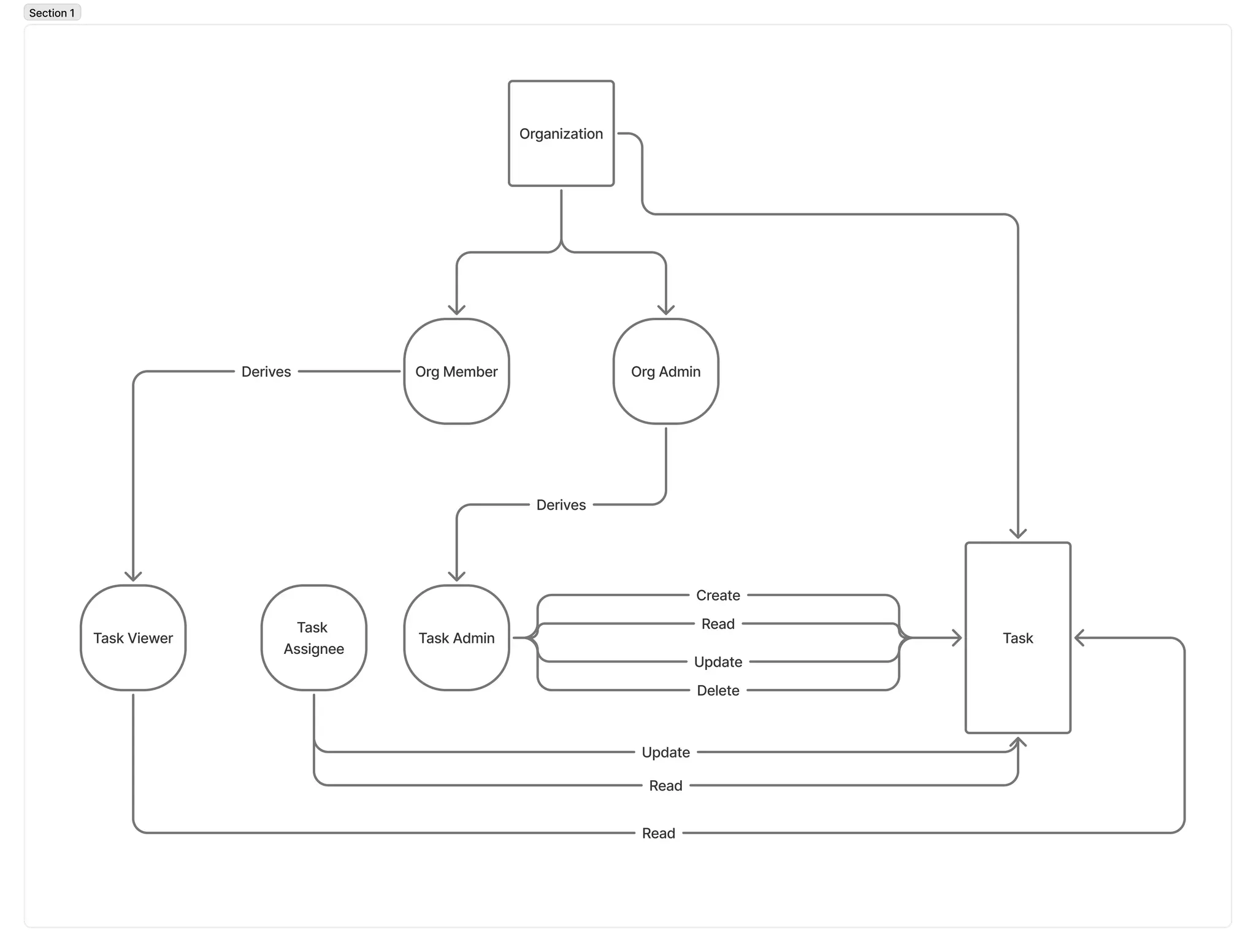
Role Derivations
To implement hierarchical access without redundant assignments:
- Organization admins automatically get admin privileges for all tasks within their organization
- Organization members automatically get viewer access to all tasks within their organization
To get started:
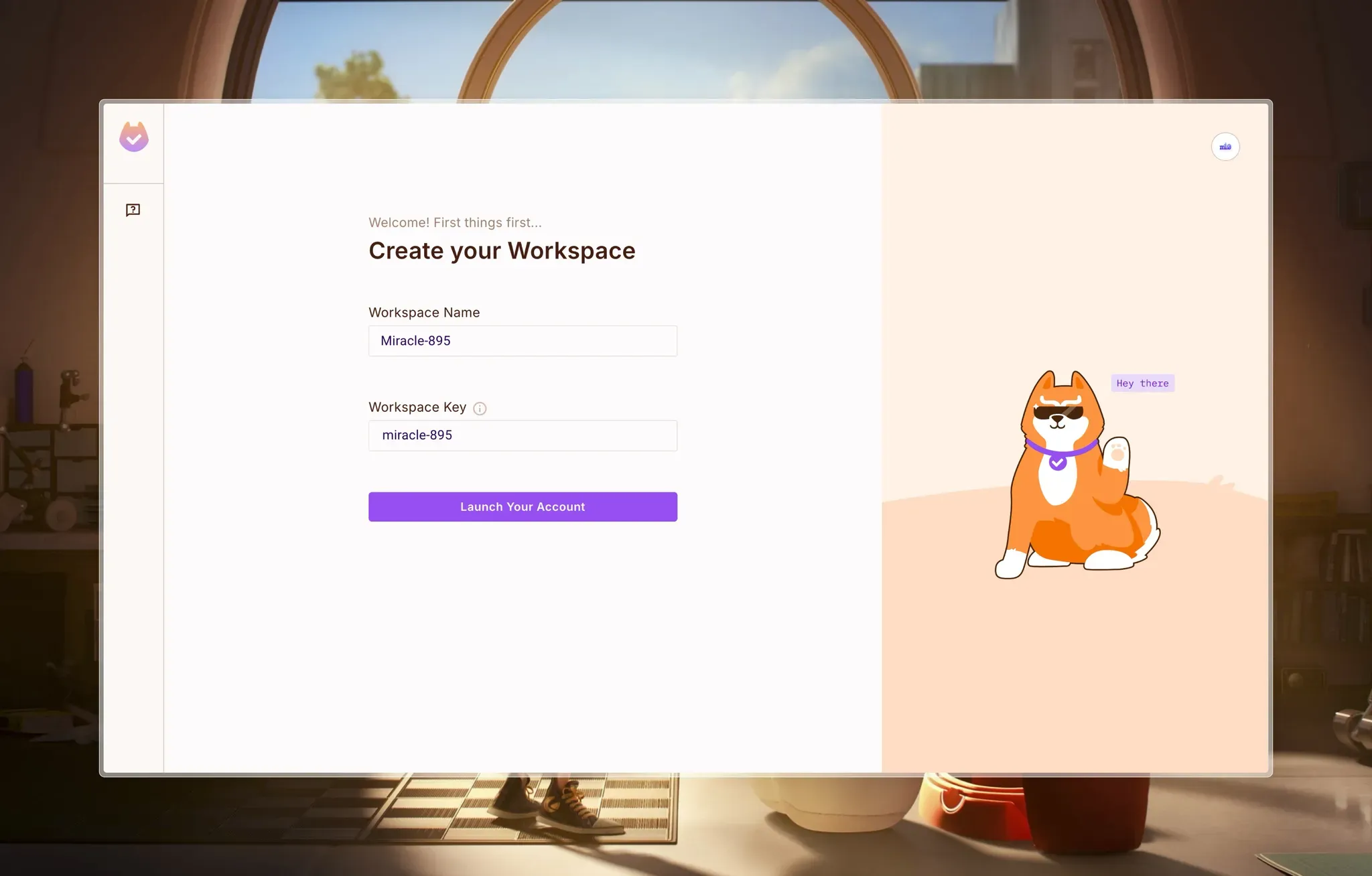
- Create an account, or log in on app.permit.io.
- Start by creating a workspace for your project:
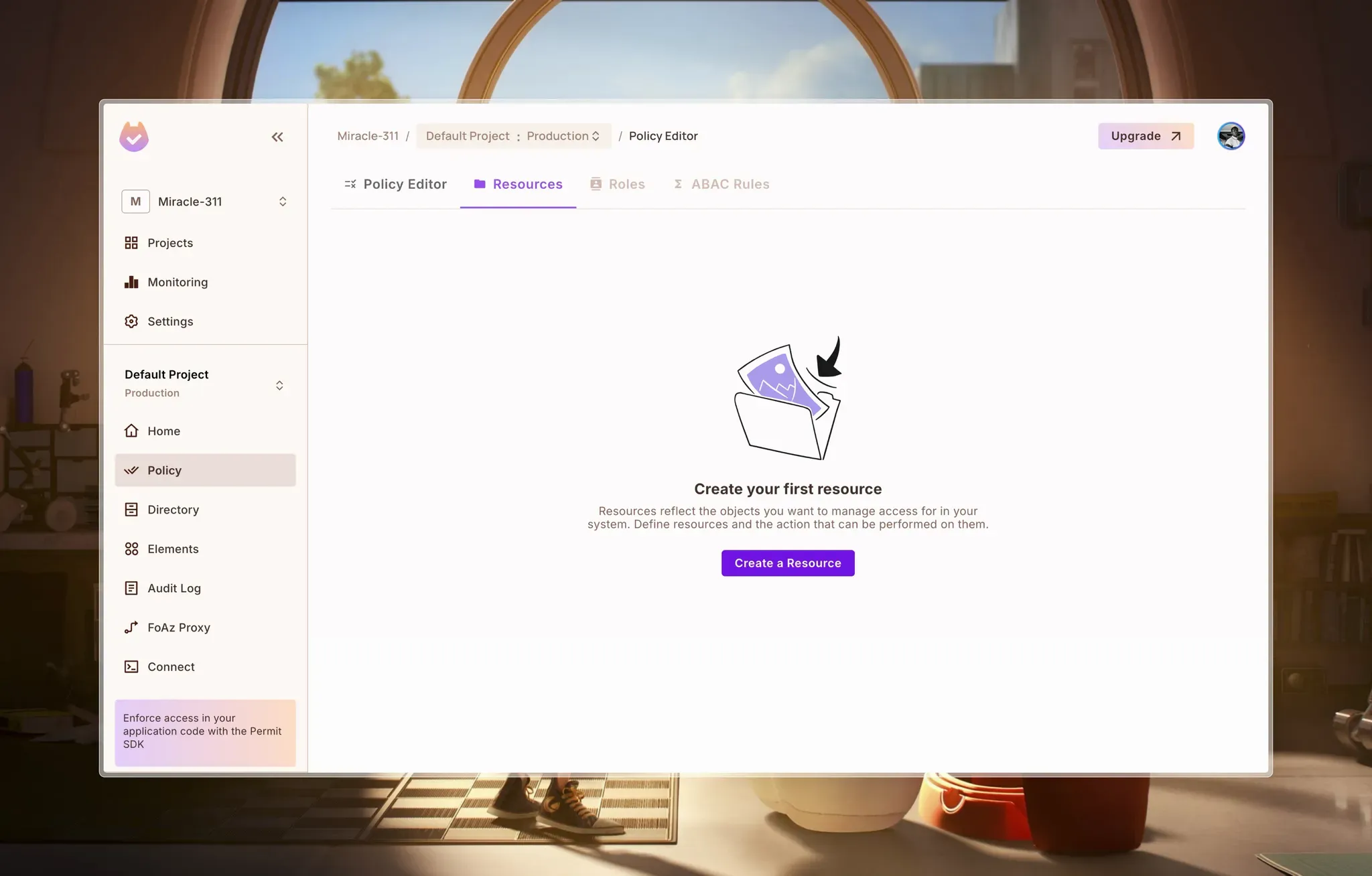
In Permit, access control is structured step-by-step. You first define resources and specify the actions that can be performed on them. Then, roles are created to determine which users have permission to perform specific actions.
Let’s start by creating resources. To do this, we have to navigate to the Resources page from Policy > Resources.
Create Organization Resource
- Create the Organization resource and define the basic read, create, update, and delete actions. These represent the possible actions that can be performed on this resource.
- Define the Instance Roles - admin and member for this resource which are roles that apply only to this resource and are not Top-Level Roles.
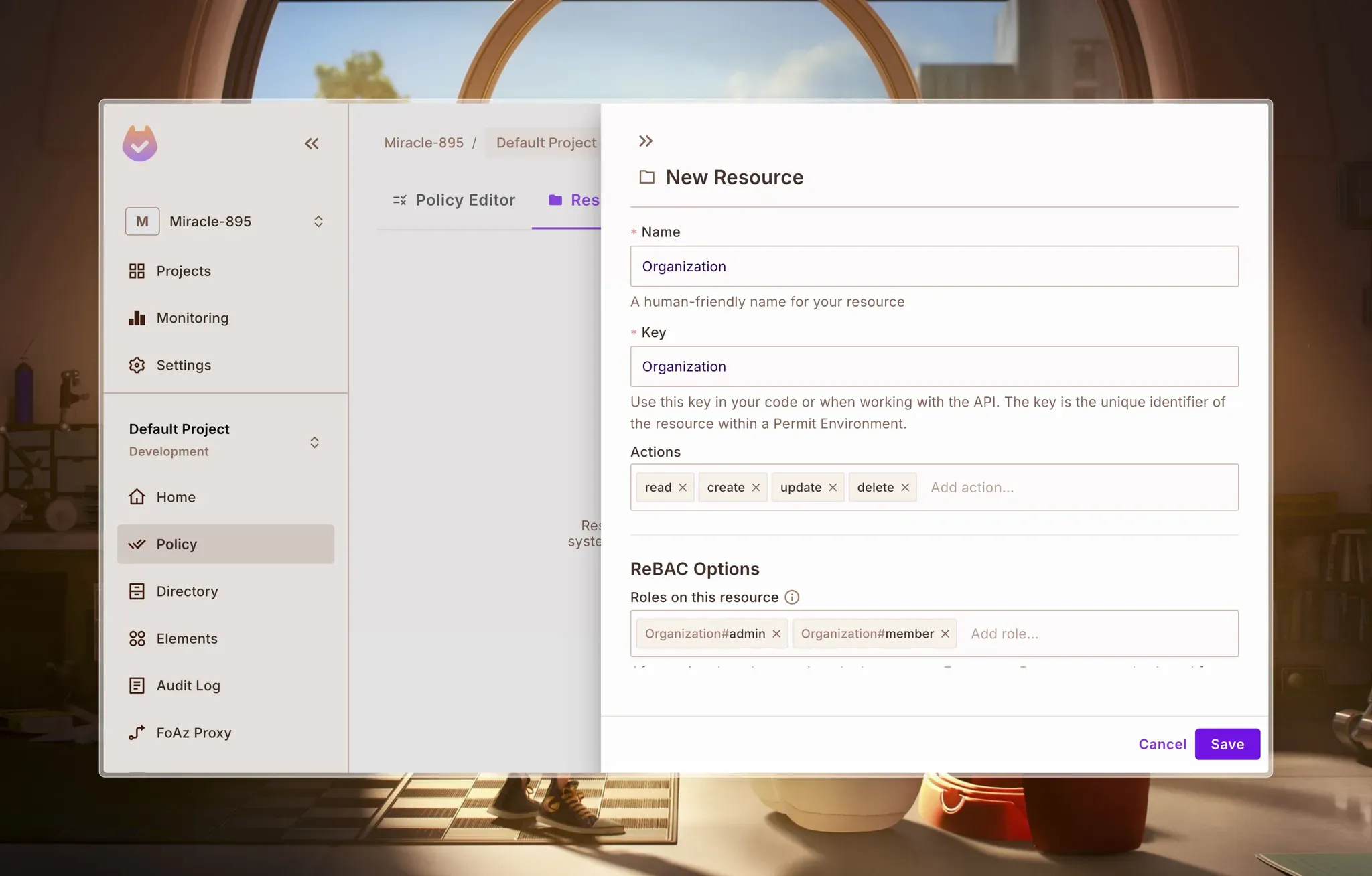
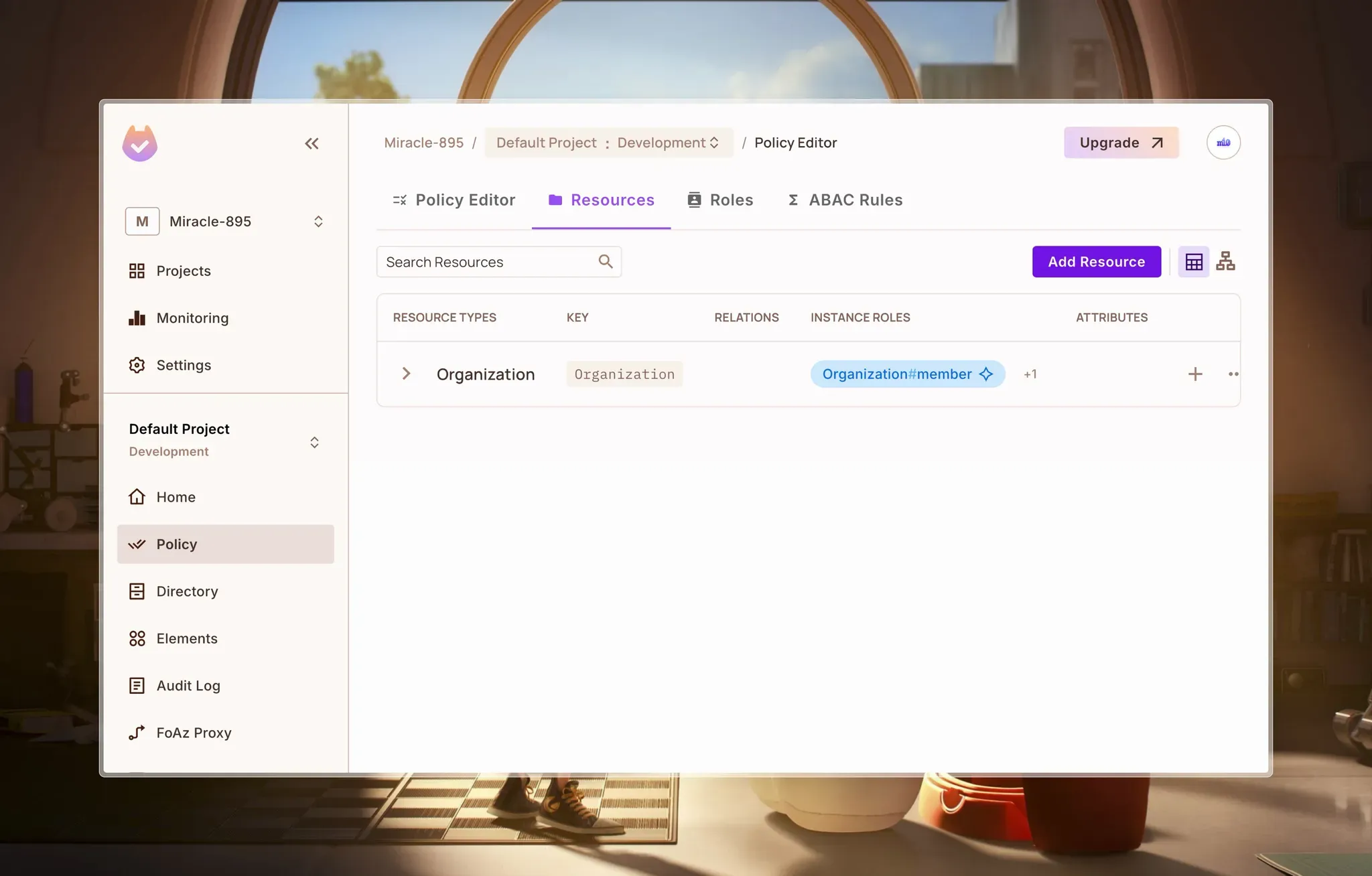
Click on Save to save changes, and we should have something like this:
Create a Task Resource
- Next, we’ll create the Task resource with the basic actions as well as instance roles - admin, assignee, and viewer
- Define the Relationships, which establish connections between resources and enforce access control based on those relationships.
In our case, Tasks belong to Organizations, so we define Organization is Parent of Task for this resource. This relationship:
- Allows any instance role for an Organization to be tied to its Task instances.
- Enables role derivations, meaning we can have organization admins automatically gain admin access to all tasks, and organization members inherit viewer access unless explicitly assigned another task role.
Establishing this relationship is crucial, as it forms the foundation for defining role derivations later on.
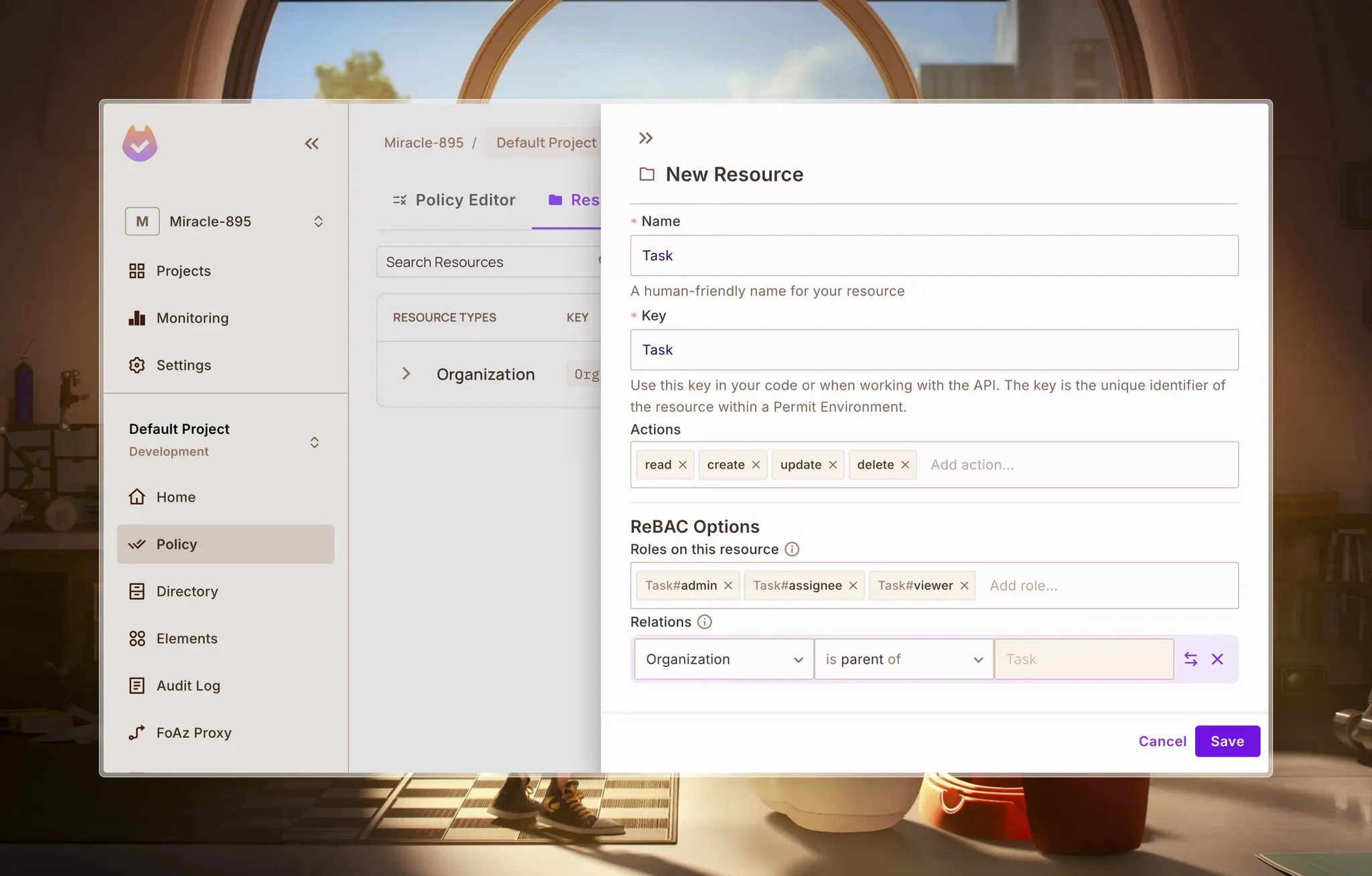
Click on Save to save changes.
Create a Top-level User Role
- Create a User top-level role that will be assigned to every user of the app. This role will have only one action Create assigned to it allowing all users to create organizations or tasks.
- Navigate to Policy > Roles and click on Add Role. Enter User as the name.
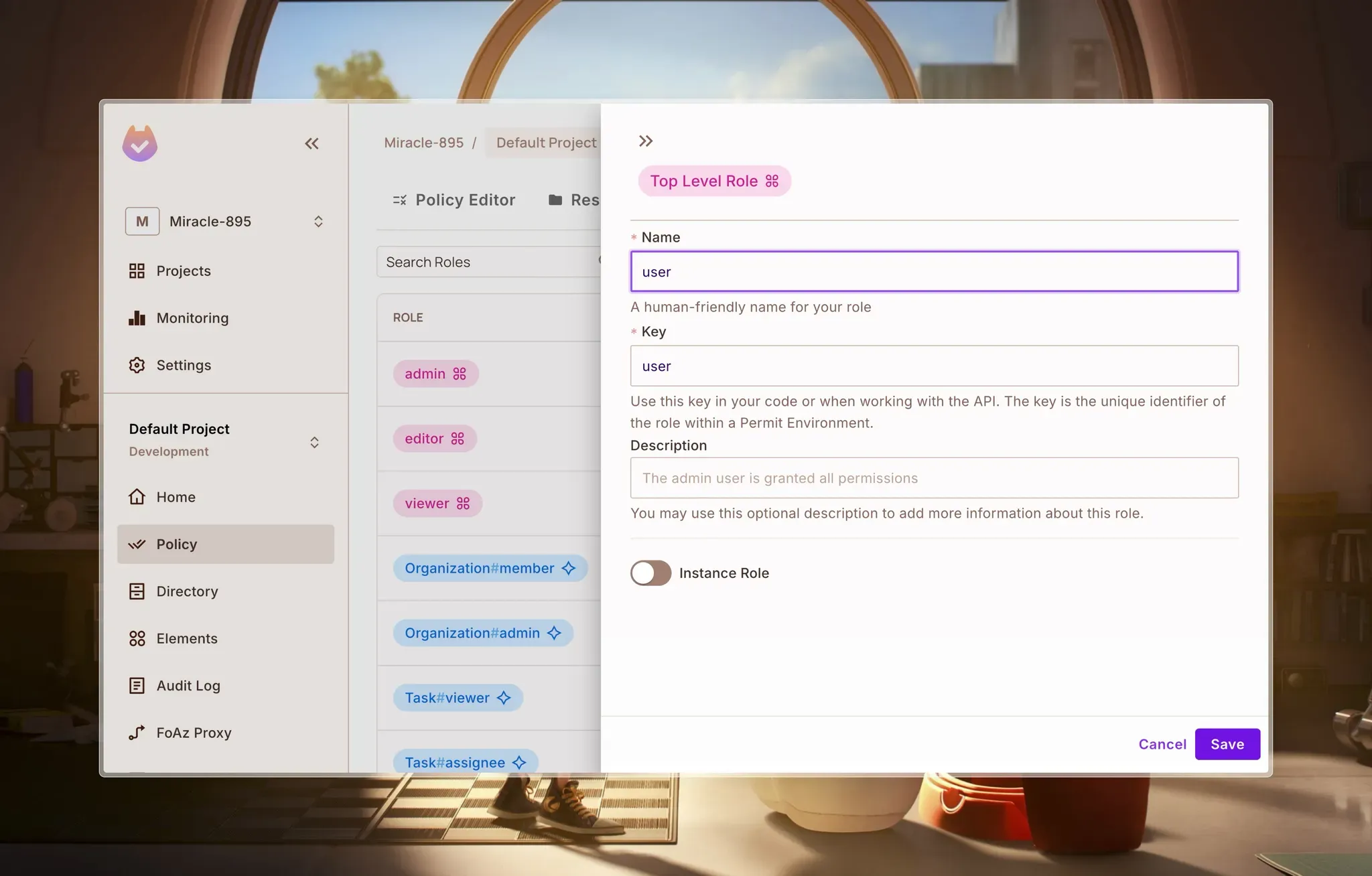
Click Save to save the role.
Define Role Derivation
We’re going to define a Role Derivation on the Orgainzation#Admin instance role. This allows a role to inherit the rights/actions of another based on a pre-defined relationship between the instances that connect them. The following diagram illustrates this concept:
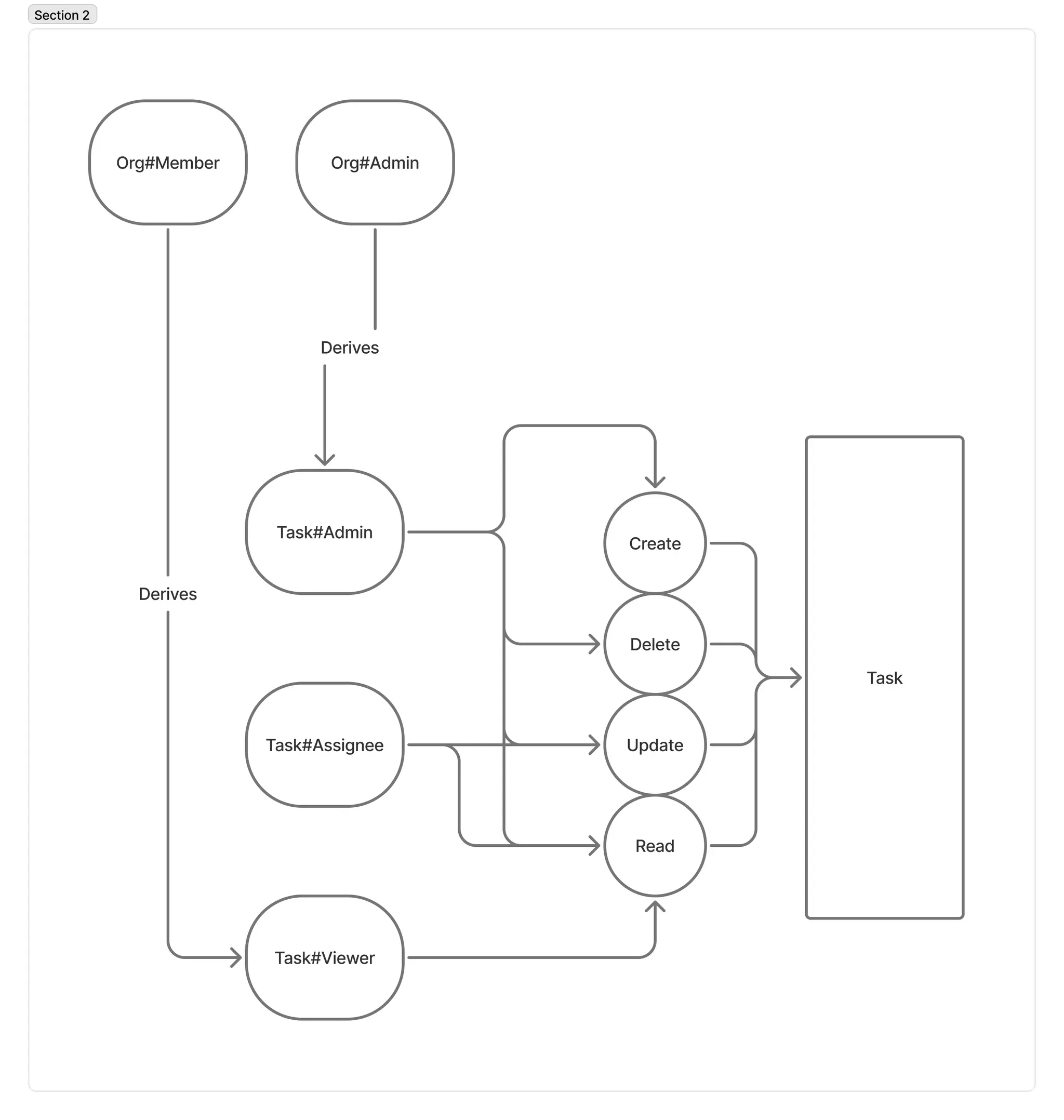
In our Permit dashboard, navigate to the Roles page, click on Organization#admin instance role, and edit it.
Here, we state that
Organization#admin derives Task#admin, meaning that anyone assigned the Organization#admin role automatically gets the same permissions asTask#admin.- Since a Task belongs to an Organization, this inheritance only applies when a Task is created under a specific Organization.
It summarizes it nicely like so:
A user who is a Organization#admin will also be a Task#admin when a Organization instance is the parent of a Task instance.
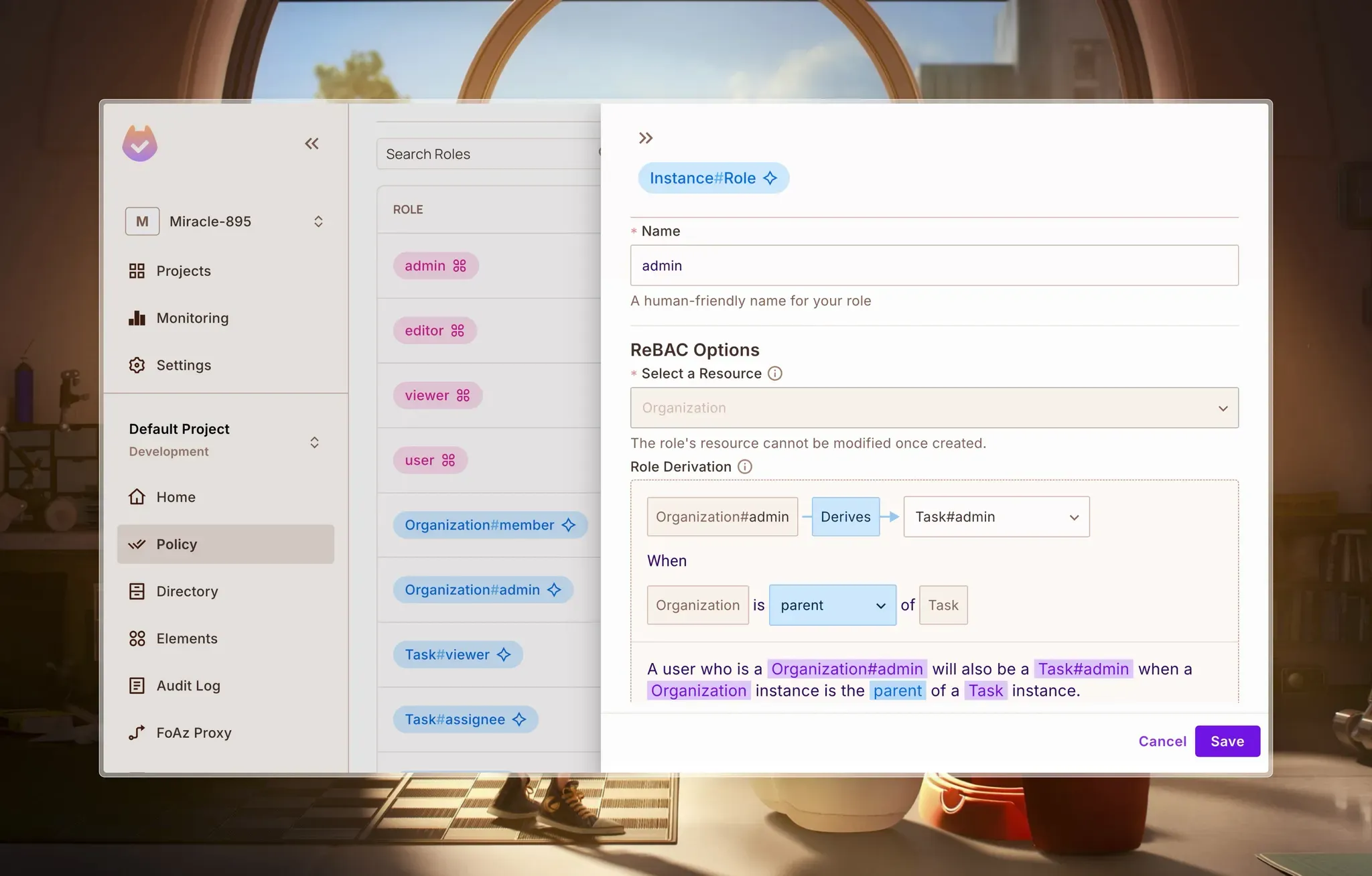
Click on Save to save changes.
We’ll do the same thing for Organization#member instance role:
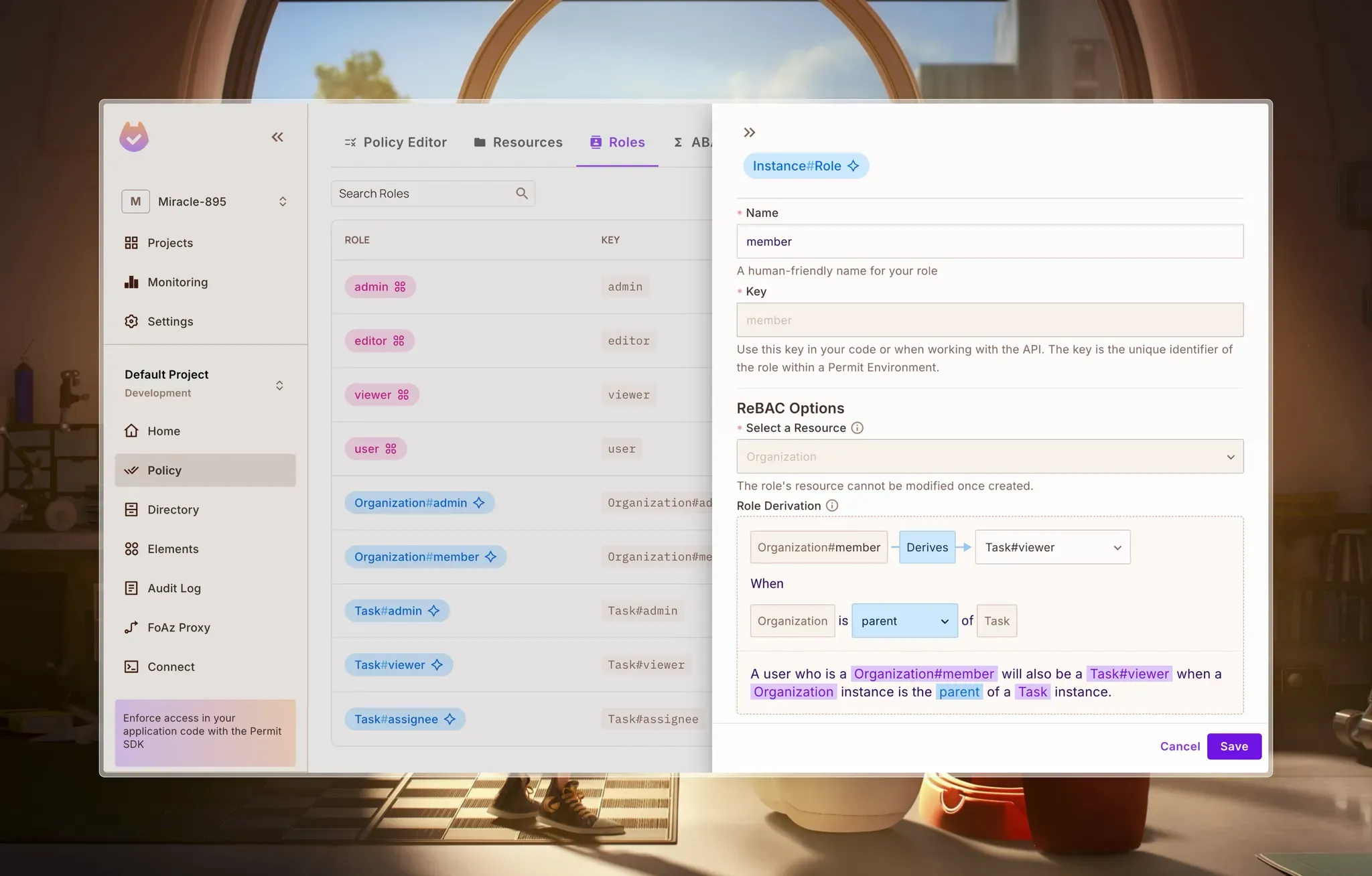
A user who is a Organization#member will also be a Task#viewer when a Organization instance is the parent of a Task instance.
Configure Role-Based Policies
Now, go to the Policy Editor tab and check the boxes to define the roles’ actions.
For the User role:
Organization: create
Task: create
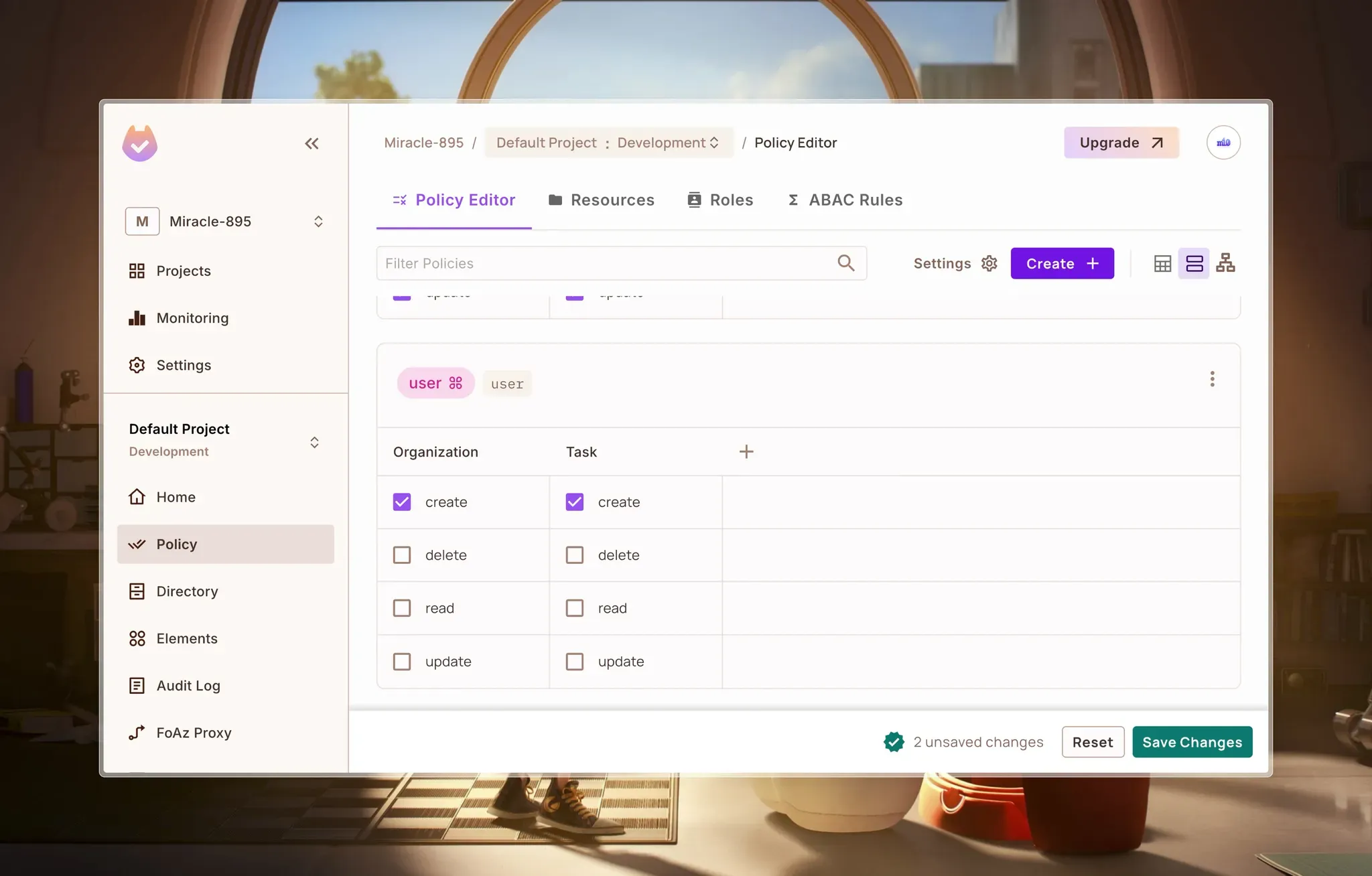
For the instance roles:
Organization:
Task:
- admin:
All
- assignee:
read, update
- viewer:
read
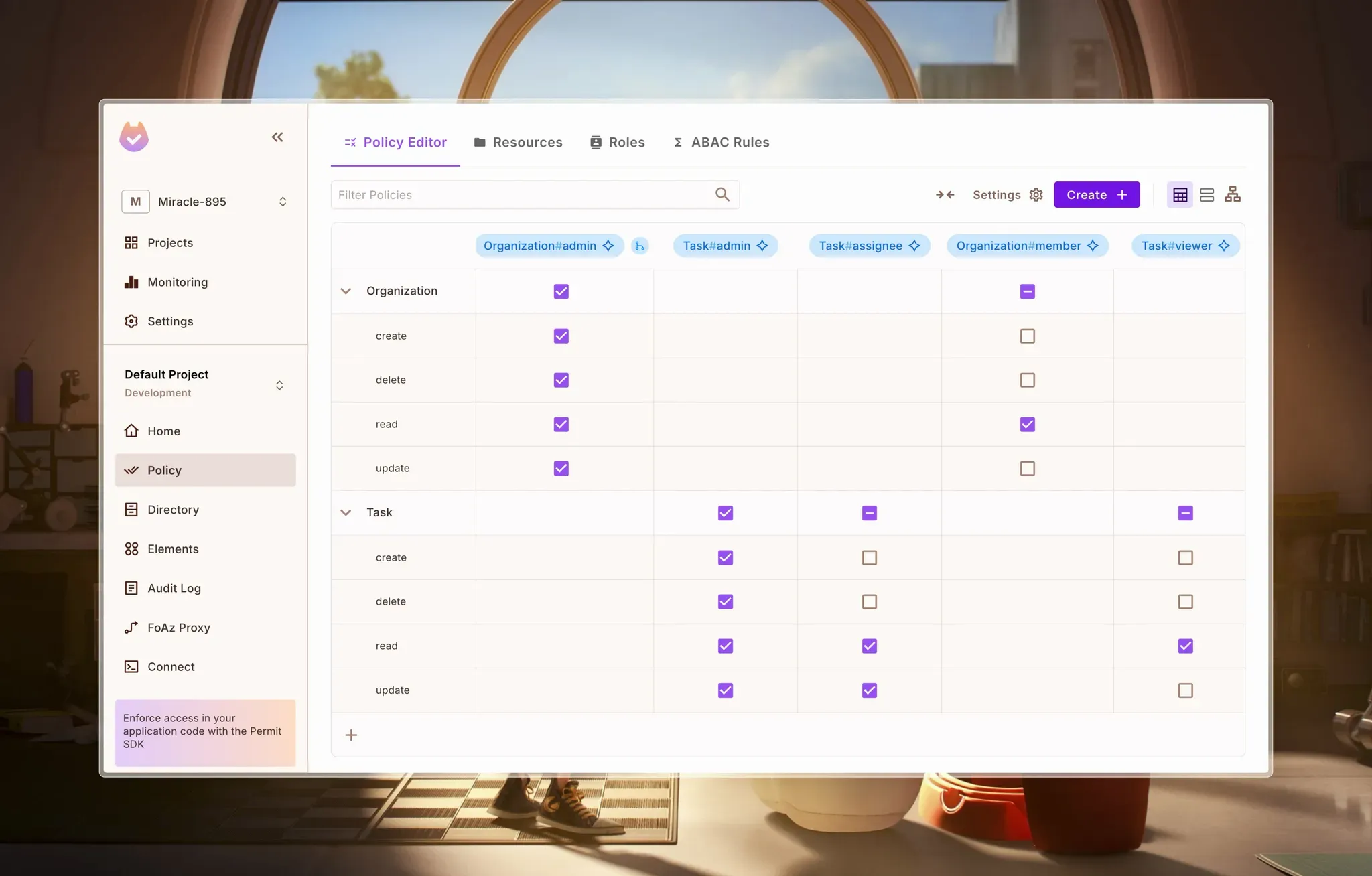
With these policies configured, we’ve defined how roles determine access to organizations and tasks.
Integrating Permit.io In our Next.js App
In this section, we'll integrate Permit.io into our Next.js app by:
- Obtaining our API Key from the Permit.io dashboard
- Deploying a local Policy Decision Point (PDP) using Docker
- Installing the Permit SDK in our Next.js application
- Creating API routes for user synchronization and role assignment, permission checks, and more.
Now, in our dashboard, navigate to the Projects page, choose an environment, and click on Connect.
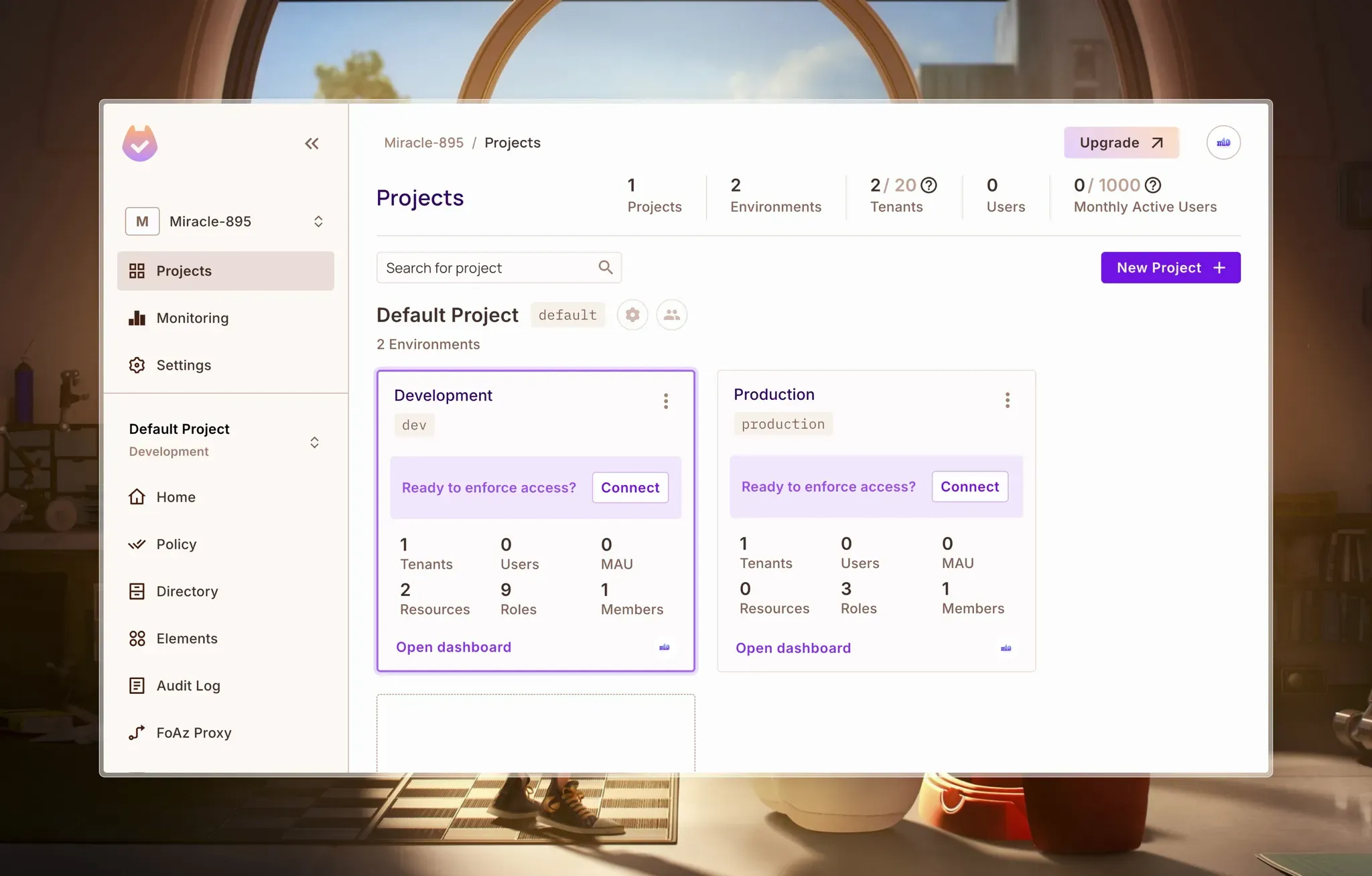
Which should take you to the Connect SDK page:
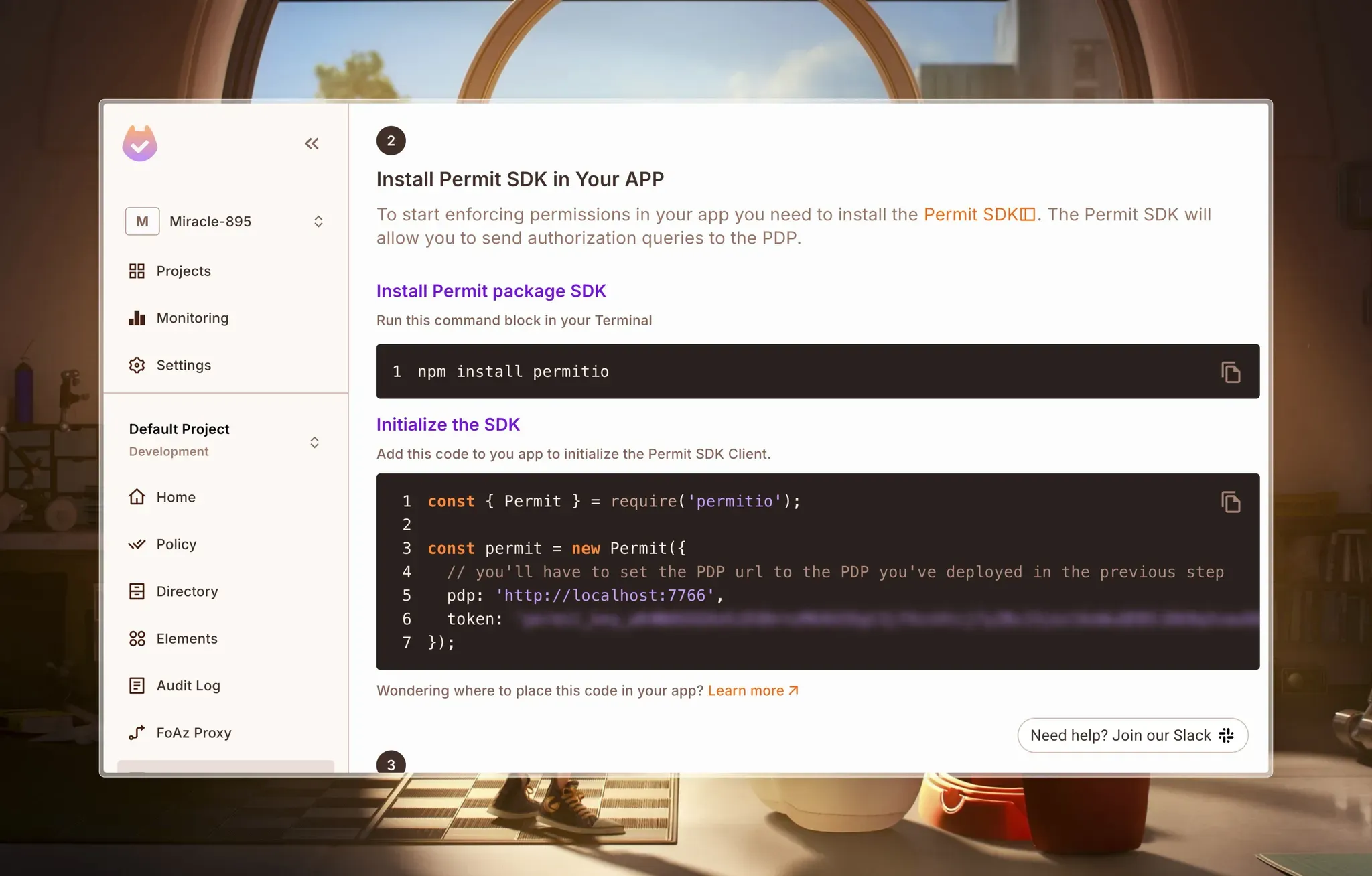
Copy your token and save it.
Set up local PDP
Next, we’ll have to set up our Policy Decision Point, which is a network node responsible for answering authorization queries using policies and contextual data.
Pull the PDP container from Docker Hub (Click here to install Docker):
docker pull permitio/pdp-v2:latest
Run the container & replace the PDP_API_KEY environment variable with your API key:
docker run -it \\
  -p 7766:7000 \\
  --env PDP_API_KEY=<YOUR_API_KEY> \\
  --env PDP_DEBUG=True \\
  permitio/pdp-v2:latest
Now that we have our PDP set up, let’s dive into adding authorization to our app, you can learn more about adding Permit.io to a Next.js app from this step-by-step tutorial on the Permit.io blog.
Install Permit in your Next.js App
In your terminal, navigate to the project folder and install Permit SDK
npm install permitio
Create a new file - ./lib/permit.ts:
import { Permit } from "permitio";
const permit = new Permit({
  // you'll have to set the PDP url to the PDP you've deployed in the previous step
  pdp: "<http://localhost:7766>",
  token:
    "your_api_key",
});
export default permit;
Next, we’ll create a few API routes for assigning roles, checking permissions, and more using Permit:
Create API Routes to handle Permit Operations
In our Next.js project, we’ll create a few API Route handlers to communicate with the Permit.io API on the server-side.
Sync User
Syncing a user registers their information in Permit.io, ensuring their roles and permissions are up to date for access control enforcement. Learn more.
Create a new file - ./app/api/permit/sync-user/route.ts and enter the following:
// Import Permit.io instance and Next.js response helper
import permit from "@/lib/permit";
import { NextResponse } from "next/server";

// Define a POST request handler
const POST = async (req: Request) => {
  try {
    const body = await req.json(); // Parse request body

    // Sync user data with Permit.io
    const syncedUser = await permit.api.syncUser(body);
    console.log("Synced user:", syncedUser);

    // Return success response
    return NextResponse.json({
      success: true,
      message: "User synced successfully",
      data: syncedUser,
    });
  } catch (error) {
    console.log("Error syncing user:", error);

    // Return error response
    return new Response(`Failed to sync user: ${(error as Error).message}`, {
      status: 500,
    });
  }
};

// Export the handler
export { POST };
Here, we’re using the permit.api.syncUser method to synchronize user data with Permit.io.
Assign Role
In this section, we’re creating an API route to assign user roles.
Create a new file - ./app/api/permit/assign-role/route.ts and enter the following:
// Import Permit.io instance and Next.js response helper
import permit from "@/lib/permit";
import { NextResponse } from "next/server";

// Define a POST request handler
const POST = async (req: Request) => {
  try {
    const body = await req.json(); // Parse request body
    console.log("Assigning role to user:", body);

    // Assign role to user using Permit.io
    const assignedRole = await permit.api.assignRole({
      role: body.role, // Role to assign
      user: body.user, // User to assign role to
      ...(body?.resource_type &&
        body?.resource_instance && {
          resource_instance: `${body.resource_type}:${body.resource_instance}`, // Optional resource instance
        }),
      ...(body?.tenant && { tenant: body.tenant }), // Optional tenant
    });

    // Return success response
    return NextResponse.json({
      success: true,
      message: "Role assigned successfully",
      data: assignedRole,
    });
  } catch (error) {
    console.log("Error assigning role:", error);

    // Return error response
    return new Response(`Failed to assign role ${(error as Error).message}`, {
      status: 500,
    });
  }
};

// Export the handler
export { POST };
Here, we’re using the permit.api.assignRole method, which accepts role, user, resource_instance (optional), and tenant (optional). This assigns the specified role to the user within Permit.io’s access control system.
Create Resource Relationship
Next, we’re setting up an API route to establish relationships between resources. Create a new file - ./app/api/permit/create-relationship/route.ts and enter the following:
// Import Permit.io instance and Next.js response helper
import permit from "@/lib/permit";
import { NextResponse } from "next/server";

// Define a POST request handler
const POST = async (req: Request) => {
  try {
    const body = await req.json(); // Parse request body
    console.log("Creating resource relationship:", body);

    // Create a resource relationship using Permit.io
    const resourceRelationship = await permit.api.relationshipTuples.create({
      subject: body.subject, // The user or entity involved
      relation: body.relation, // The type of relationship (e.g., owner, member)
      object: body.object, // The resource being related to
    });

    // Return success response
    return NextResponse.json({
      success: true,
      message: "Resource relationship created successfully",
      data: resourceRelationship,
    });
  } catch (error) {
    console.log("Error creating resource relationship:", error);

    // Return error response
    return new Response(
      `Failed to create resource relationship ${(error as Error).message}`,
      {
        status: 500,
      }
    );
  }
};

// Export the handler
export { POST };
Here, we’re using the permit.api.relationshipTuples.create method to define a relationship between a subject (user or entity), a relation (such as “owner” or “viewer”), and an object (resource). This helps enforce access control policies based on relationships in Permit.io.
Create Resource Instance
In this section, we’re creating an API route to register new resource instances in Permit.io. We’ll use this route to create Organization and Task resource instances in Permit.io.
Create a new file - ./app/api/permit/create-resource-instance/route.ts and enter the following:
// Import Permit.io instance and Next.js response helper
import permit from "@/lib/permit";
import { NextResponse } from "next/server";

// Define a POST request handler
const POST = async (req: Request) => {
  try {
    const body = await req.json(); // Parse request body
    console.log("Creating resource instance:", body);

    // Create a new resource instance using Permit.io
    const resourceInstance = await permit.api.resourceInstances.create({
      key: body.key, // Unique identifier for the resource instance
      resource: body.resource, // Resource type (e.g., "document", "project")
      tenant: "default", // Tenant scope (default if not specified)
    });

    // Return success response
    return NextResponse.json({
      success: true,
      message: "Resource instance created successfully",
      data: resourceInstance,
    });
  } catch (error) {
    console.log("Error creating resource instance:", (error as Error).message);

    // Return error response
    return new Response(
      `Failed to create resource instance ${(error as Error).message}`,
      {
        status: 500,
      }
    );
  }
};

// Export the handler
export { POST };
Here, we’re using the permit.api.resourceInstances.create method to register a new resource instance with a unique key, a resource type, and an optional tenant.
Check User Permission
In this section, we’re creating an API route to verify if a user has permission to perform a specific action on a resource.
Create a new file - ./app/api/permit/check/route.ts and enter the following:
// Import Permit.io instance
import permit from "@/lib/permit";

// Define a POST request handler
const POST = async (req: Request) => {
  try {
    const body = await req.json(); // Parse request body
    console.log("Checking if user has permission:", body);

    // Check if the user has the required permission
    const check = await permit.check(
      body.user, // User ID
      body.action, // Action to check (e.g., "read", "write")
      body.resource, // Resource type
      body.context // Optional context data
    );

    // Return the permission check result
    return new Response(JSON.stringify(check), {
      status: 200,
      headers: {
        "Content-Type": "application/json",
      },
    });
  } catch (error) {
    console.log("Error checking user permission:", error);

    // Return error response
    return new Response(
      `Failed to check user permission: ${(error as Error).message}`,
      {
        status: 500,
      }
    );
  }
};

// Export the handler
export { POST };
Here, we’re using the permit.check method to determine if a user has permission to perform a specific action on a resource.
Next, we’ll use our API routes in our utilities and components to sync users, assign roles, check permissions, and more:
Sync User and assign role during User Sign-Up
We’ll modify our create user utility to create a user in Firebase, sync the user with Permit.io, and assign a default role of “user.”
In the ./utils/firebase/user/createUser.ts file, we sync the user and assign a default role of “user”:
// ./utils/firebase/user/createUser.ts
// ...
const createUser = async (userCredential: UserCredential) => {
  try {
    // ...
    const { uid, displayName, email, photoURL } = userCredential.user;
    // Create a reference to the *user* document in Firestore
    const userRef = doc(db, "users", uid);
    // Check if user already exists in Firestore
    const userSnap = await getDoc(userRef);
    if (!userSnap.exists()) {
      // Create new user record with server timestamp
      const userData: FirestoreUser = {
        displayName,
        email,
        photoURL,
        uid,
        createdAt: serverTimestamp(),
        lastLoginAt: serverTimestamp(),
      };
      await setDoc(userRef, userData);
      console.log(`User created successfully: ${uid}`);

      // Sync user with Permit
      await fetch("/api/permit/sync-user", {
        method: "POST",
        body: JSON.stringify({
          key: uid,
          email: email || "",
          first_name: displayName || "",
        }),
      });
      // assign role of editor to the user
      await fetch("/api/permit/assign-role", {
        method: "POST",
        body: JSON.stringify({
          user: uid,
          role: "user",
          tenant: "default",
        }),
      });
      return {
        success: true,
        message: "User created successfully",
        user: { uid, email },
      };
    } else {
      // ...
    }
  } catch (error) {
    // ...
  }
};
export default createUser;
Here’s a synced user when they sign up on the app:
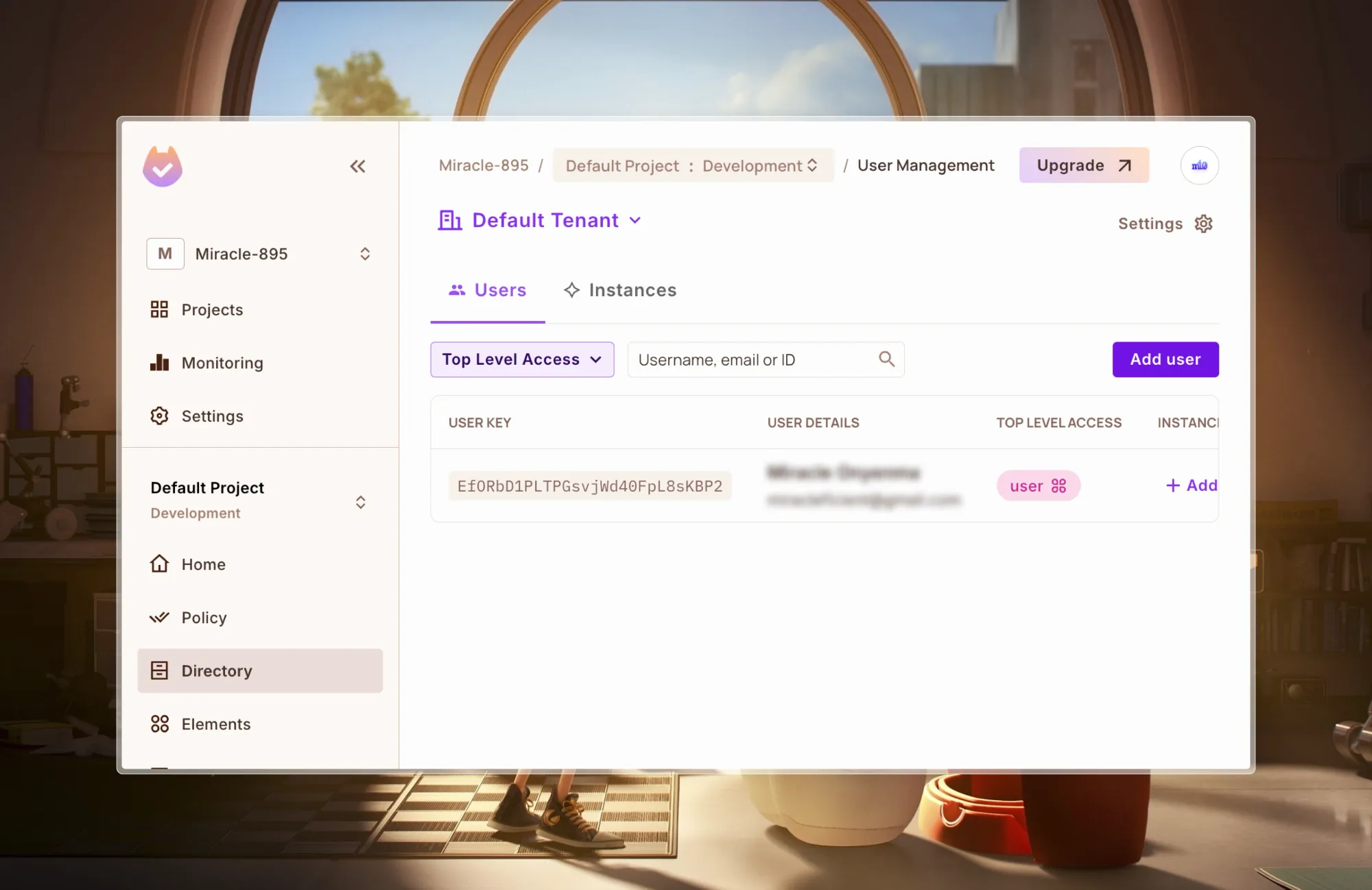
Assign Roles During Organization Creation
The next step is to assign user roles to specific instances. To give the user who created the organization admin access, we’re going to:
- Use Permit to check if the user has permission to create an organization.
- Create a resource instance for the organization.
- Assign the “admin” instance role to the user for the newly created organization.
In the ./utils/firebase/org/createOrg.ts file:
// ./utils/firebase/org/createOrg.ts
// ...
const createOrg = async ({ name, user }: { name: string; user: string }) => {
  try {
    // Check if user has permission to create an organization
    const check = await (
      await fetch("/api/permit/check", {
        method: "POST",
        body: JSON.stringify({
          user,
          action: "create",
          resource: "Organization",
        }),
      })
    ).json();

    if (!check) throw new Error("User does not have permission to create org");

    // ...

    const orgRef = doc(db, "orgs", name);
    const orgSnap = await getDoc(orgRef);

    if (!orgSnap.exists()) {
      // Create new organization record
      const orgData: FirestoreOrg = {
        name,
        createdAt: serverTimestamp(),
        updatedAt: serverTimestamp(),
        createdBy: user,
      };

      await setDoc(orgRef, orgData);
      console.log(`Organization created successfully: ${name}`);

      // Get the fresh document to return the complete data
      const newOrgSnap = await getDoc(orgRef);
      const newOrgData = { ...newOrgSnap.data(), id: newOrgSnap.id };

      // Create a resource instance for the organization
      await fetch("/api/permit/create-resource-instance", {
        method: "POST",
        body: JSON.stringify({
          key: newOrgData.id,
          resource: "Organization",
          tenant: "default",
        }),
      });

      // Assign the role of "admin" to the user for this organization
      await fetch("/api/permit/assign-role", {
        method: "POST",
        body: JSON.stringify({
          user,
          role: "admin",
          resource_type: "Organization",
          resource_instance: newOrgData.id,
        }),
      });

      return { success: true, message: "Organization created successfully", org: newOrgData };
    } else {
      // ...
  } catch (error) {
    // ...
  }
};
export default createOrg;
Here, we:
- Check if the user has permission to create an organization using the
/api/permit/check API route.
- Create a resource instance for the organization, using
/api/permit/create-resource-instance API route
- And assign the “admin” role to the user -
/api/permit/assign-role
In the GIF below, we can see the Resource Instance is created for the newly created Organization.
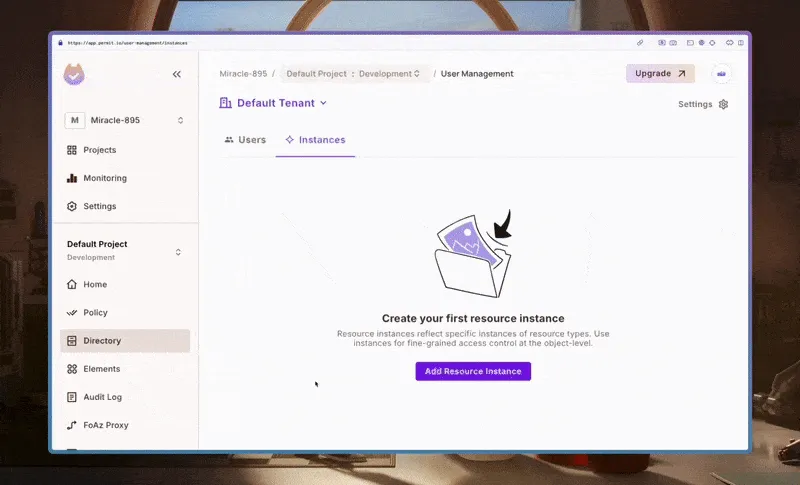
If you navigate to the Users tab, we can see that the Organization Admin role has been added to the user:
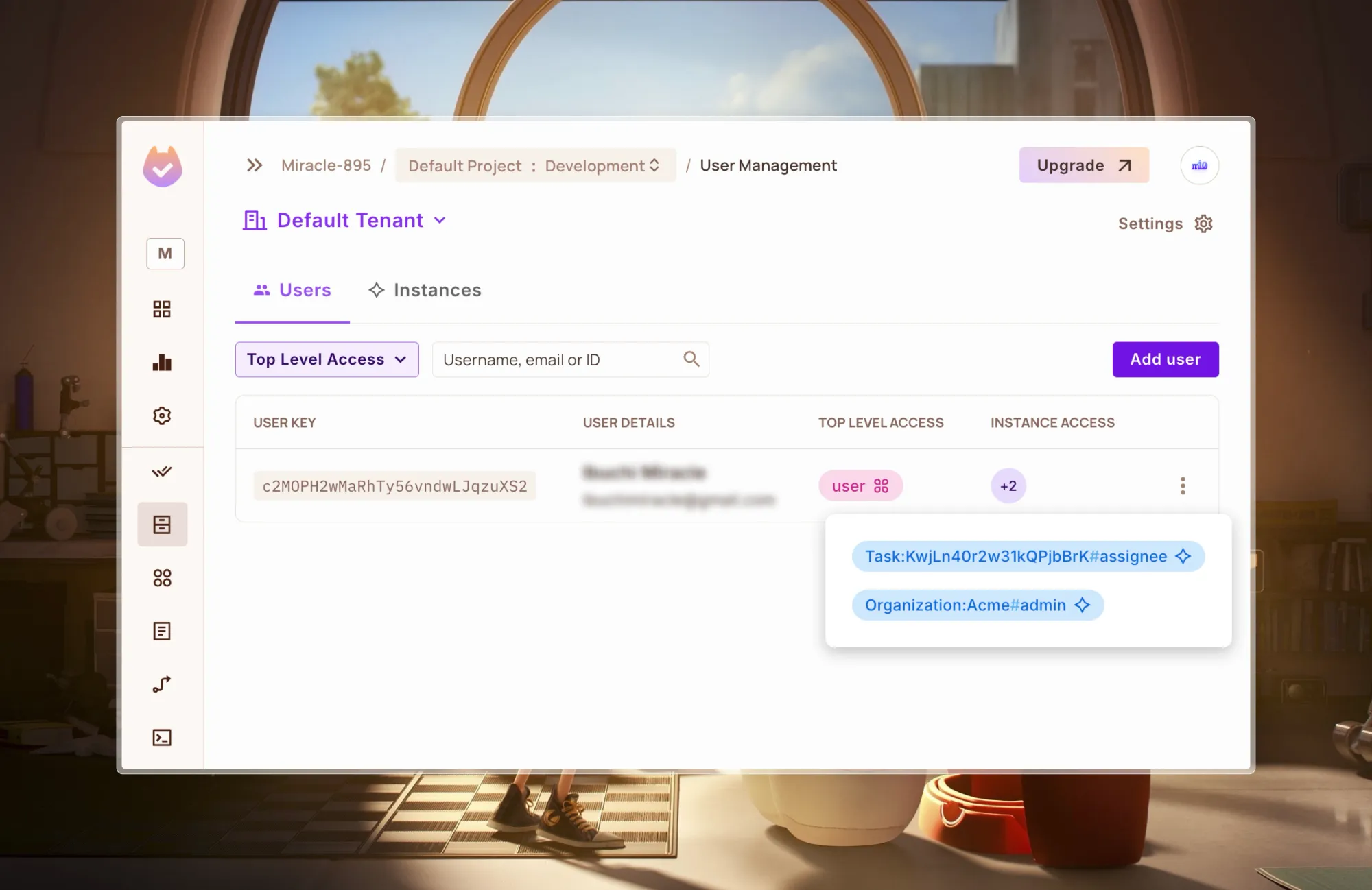
To add members, we’ll have to modify the ./utils/firebase/membership/createMember.ts file and add a check to the createMember function:
const createMember = async (membershipInput: MembershipInput) => {
  // check if user has permission to create membership
  const check = await (
    await fetch("/api/permit/check", {
      method: "POST",
      body: JSON.stringify({
        user: membershipInput.invitedBy,
        action: "update",
        resource: `Organization:${membershipInput.orgId}`,
      }),
    })
  ).json();
  if (!check) throw new Error("User does not have permission to add a member");
  try {
    // ...
  } catch (error) {
    // ...
  }
};
With that, if the user has sufficient permissions, they will be able to make a user a memberץ
Task Authorization & Role Assignment During Task Creation
When creating a task, it’s essential to ensure that only authorized users can perform specific actions, such as creating or being assigned to a task.
In the ./utils/firebase/task/createTask.ts file, we’re going to use Permit.io to check if the user is permitted to create a task and then, perform role assignment when creating a task:
// ./utils/firebase/task/createTask.ts
// ...
const createTask = async (taskInput: TaskInput) => {
  try {
    // Check if user has permission to create a task
    const check = await (
      await fetch("/api/permit/check", {
        method: "POST",
        body: JSON.stringify({
          user: taskInput.createdBy,
          action: "create",
          resource: "Task",
        }),
      })
    ).json();
    if (!check) throw new Error("User does not have permission to create task");

    // ...

    // Create resource instance for the task
    await fetch("/api/permit/create-resource-instance", {
      method: "POST",
      body: JSON.stringify({
        key: taskRef.id,
        resource: "Task",
        tenant: "default",
      }),
    });

    // Assign roles to users
    await fetch("/api/permit/assign-role", {
      method: "POST",
      body: JSON.stringify({
        user: taskInput.createdBy,
        role: "admin",
        resource_type: "Task",
        resource_instance: taskRef.id,
      }),
    });

    await fetch("/api/permit/assign-role", {
      method: "POST",
      body: JSON.stringify({
        user: taskInput.assignedTo,
        role: "assignee",
        resource_type: "Task",
        resource_instance: taskRef.id,
      }),
    });

    // Create a relationship between the task and the organization
    await fetch("/api/permit/create-relationship", {
      method: "POST",
      body: JSON.stringify({
        subject: `Organization:${taskInput.orgId}`,
        relation: "parent",
        object: `Task:${taskRef.id}`,
      }),
    });

    return {
      success: true,
      message: "Task created successfully",
      taskId: taskRef.id,
      task: { name: taskInput.name },
    };
  } catch (error) {
    // ...
  }
};
export default createTask;
- Access Control Check: Before creating a task, we verify if the user has permission using the
/api/permit/check endpoint.
- Resource Registration: Once a task is created, it is registered as a resource in Permit.io.
- Role Assignment: The creator of the task is assigned the “admin” role, and the assignee is given the “assignee” role.
- Organization Relationship: A relationship is established between the task and its parent organization, ensuring hierarchical permission management.
Task Authorization & Role Assignment During Task Update
Next, for updating tasks, in the ./utils/firebase/task/updateTask.ts file, we use Permit to verify if a user has permission to update a task before proceeding. Additionally, we assign the “assignee” role to the task’s assigned user.
// ./utils/firebase/task/updateTask.ts
// ...
const updateTask = async (taskUpdateInput: TaskUpdateInput) => {
  // Check if user has permission to update task
  const check = await (
    await fetch("/api/permit/check", {
      method: "POST",
      body: JSON.stringify({
        user: taskUpdateInput.updatedBy,
        action: "update",
        resource: `Task:${taskUpdateInput.taskId}`,
      }),
    })
  ).json();

  if (!check) throw new Error("User does not have permission to update task");

  try {
    // ...
    await updateDoc(taskRef, updateData);
    console.log(`Task updated successfully: ${taskId}`);

    // Assign role of task assignee to the user
    await fetch("/api/permit/assign-role", {
      method: "POST",
      body: JSON.stringify({
        user: taskUpdateInput.assignedTo,
        role: "assignee",
        resource_type: "Task",
        resource_instance: taskRef.id,
      }),
    });

    return {
      success: true,
      message: "Task updated successfully",
      task: { id: taskId },
    };
  } catch (error) {
    // ...
  }
};
export default updateTask;
Here, Permit.io ensures that only authorized users can modify a task, and the assigned user is explicitly granted the “assignee” role, maintaining role-based access control for task management.
Here it is in action:
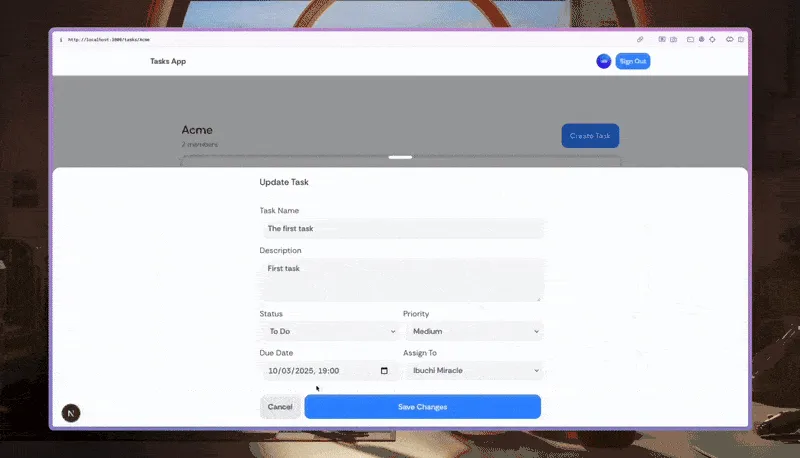
Finally, for deleting tasks, in the TaskItem component - ./components/Task/Item.tsx, we’ll add a check in the deleteTask function:
 // ./components/Task/Item.tsx
// ...
// Delete task
  const deleteTask = async () => {
    if (confirm("Are you sure you want to delete this task?")) {
      try {
        const check = await (
          await fetch("/api/permit/check", {
            method: "POST",
            body: JSON.stringify({
              user: user?.uid,
              action: "delete",
              resource: `Task:${task.id}`,
            }),
          })
        ).json();
        if (!check)
          throw new Error("User does not have permission to delete task");
        setIsDeleting(true);
        const taskRef = doc(db, "tasks", task.id);
        await deleteDoc(taskRef);
        toast.success("Task deleted successfully");
      } catch (error) {
        console.error("Error deleting task:", error);
        toast.error("Failed to delete task: " + (error as Error).message);
      } finally {
        setIsDeleting(false);
      }
    }
  };
Now, if the user tries to delete without the necessary permissions:
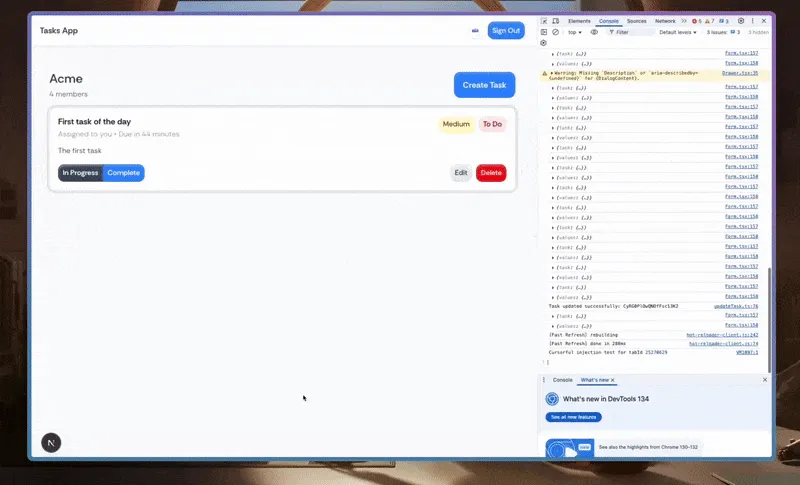
Restrict Organization Page Access
To ensure only members of an organization can see tasks for that organization, we check if the authenticated user has permission to access a specific organization (orgId) using an API call to /api/permit/check.
In the ./app/tasks/[orgId]/page.tsx page where we display tasks related to an organization, we can restrict access by calling permit.check:
// ./app/org/[orgId]/page.tsx
// ...
const OrgPage = ({ params }: { params: Promise<{ orgId: string }> }) => {
  // ...
  const [hasAccess, setHasAccess] = useState(false);
  const orgId = use(params).orgId;
  // ...
  useEffect(() => {
    const handleCheck = async () => {
      if (!orgId || !user) return;
      const check = await (
        await fetch("/api/permit/check", {
          method: "POST",
          body: JSON.stringify({
            user: user.uid,
            action: "read",
            resource: `Organization:${orgId}`,
          }),
        })
      ).json();
      setHasAccess(check);
    };
    handleCheck();
  }, [orgId, user]);
  return (
    <section className="site-section">
      <div className="wrapper">
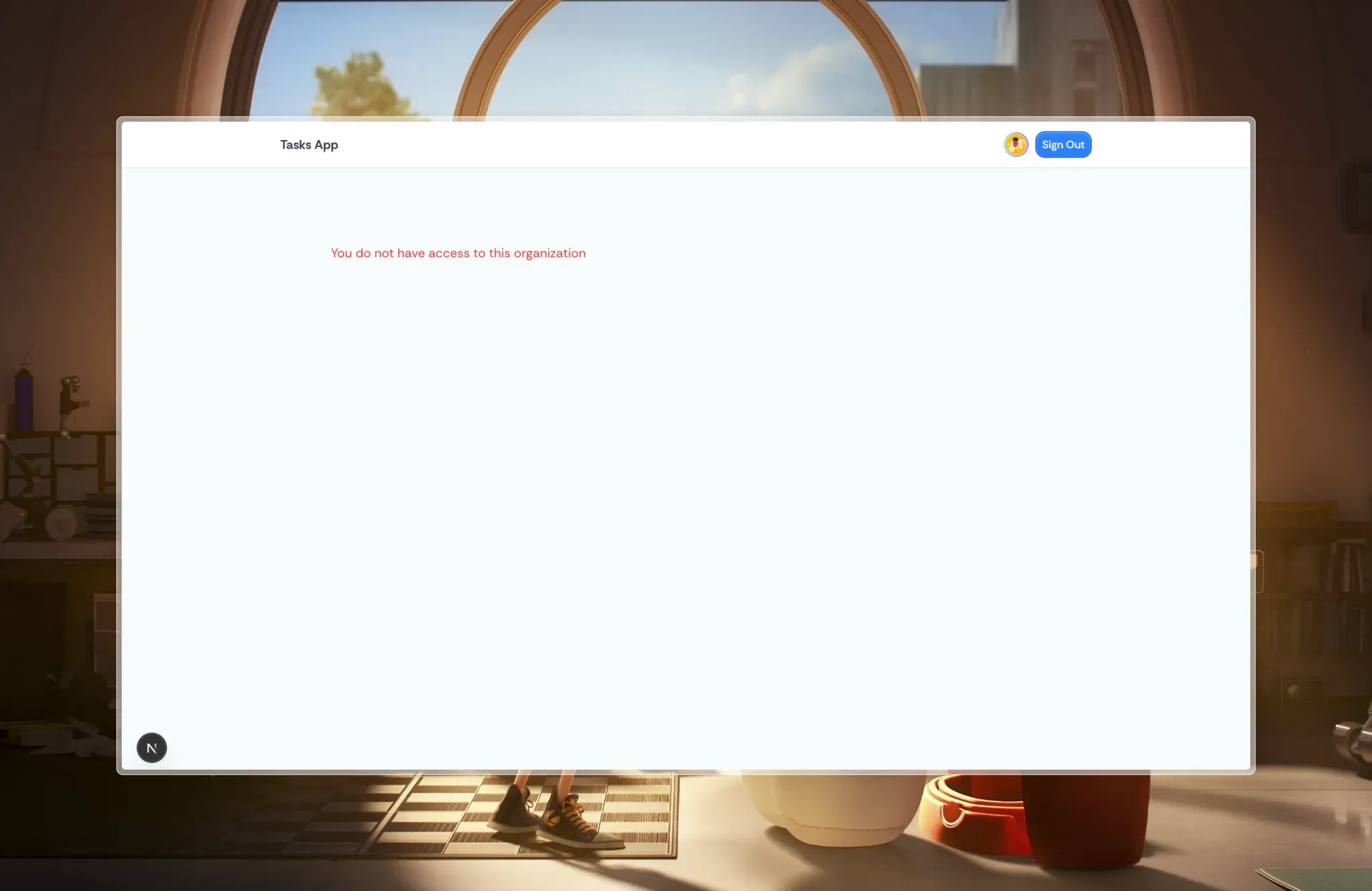
        {!hasAccess && !loading ? (
          <div className="flex items-center gap-2">
            <span className="text-red-500">
              You do not have access to this organization
            </span>
          </div>
        ) : (
          <>
            {/* Display Org Data */}
            {/* ... */}
          </>
        )}
      </div>
    </section>
  );
};
export default OrgPage;
From the code above, if the user lacks access, a message is displayed; otherwise, the organization’s data is shown as you can see in the image below:
Policy Testing with Audit Logs
Audit Logs in Permit.io help you test and debug your access control policies in real time. You can use them to:
- Verify New Policies: Ensure rules grant or deny access as expected before deployment.
- Troubleshoot Issues: Identify why a user was denied or granted access with detailed policy evaluations.
To check your audit logs click on Audit Log from the sidebar:
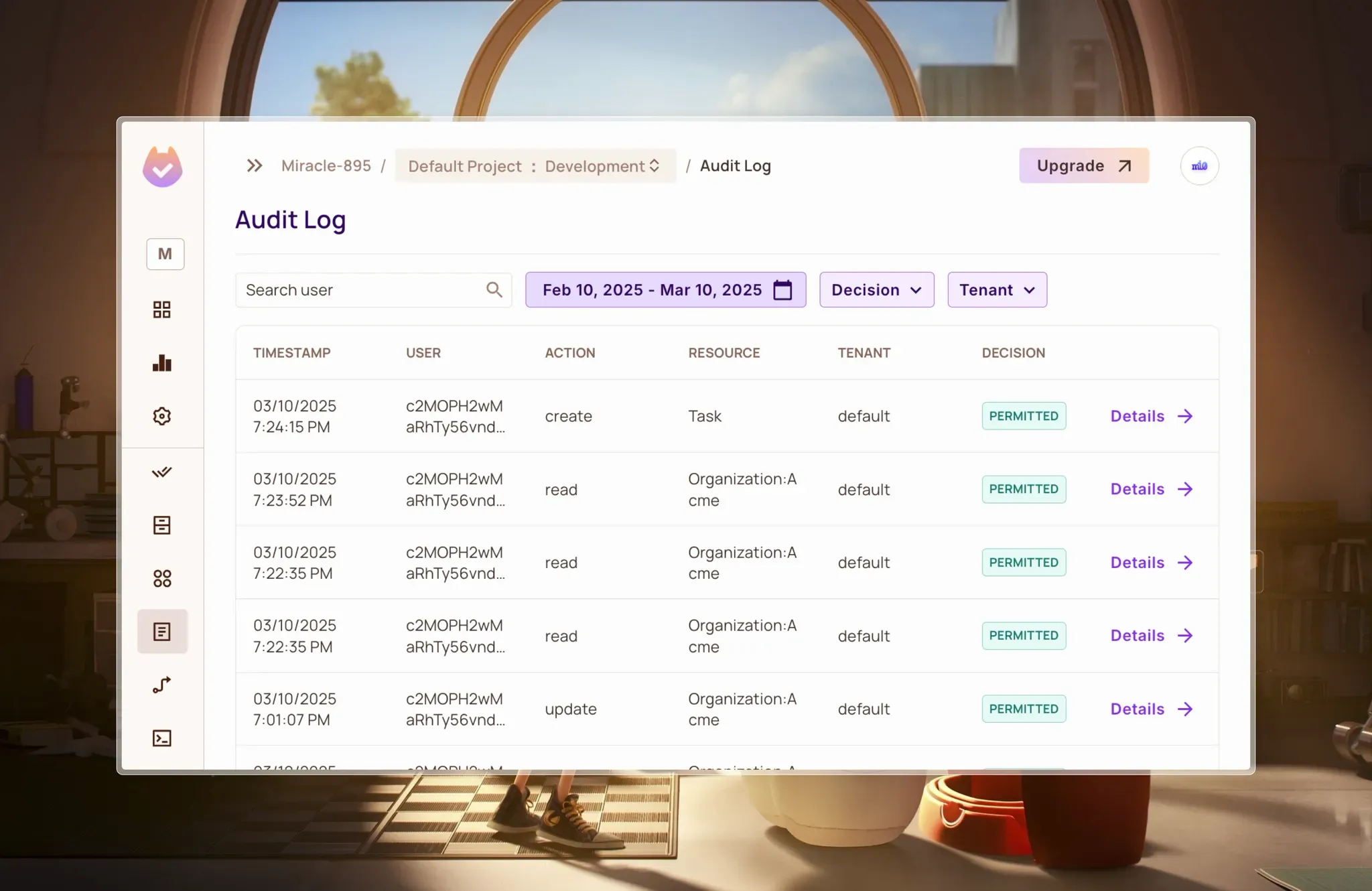
The main audit log interface shows a chronological record of all permission decisions in your app. Here, you can see what user attempted what action on which resource, and whether it was permitted.
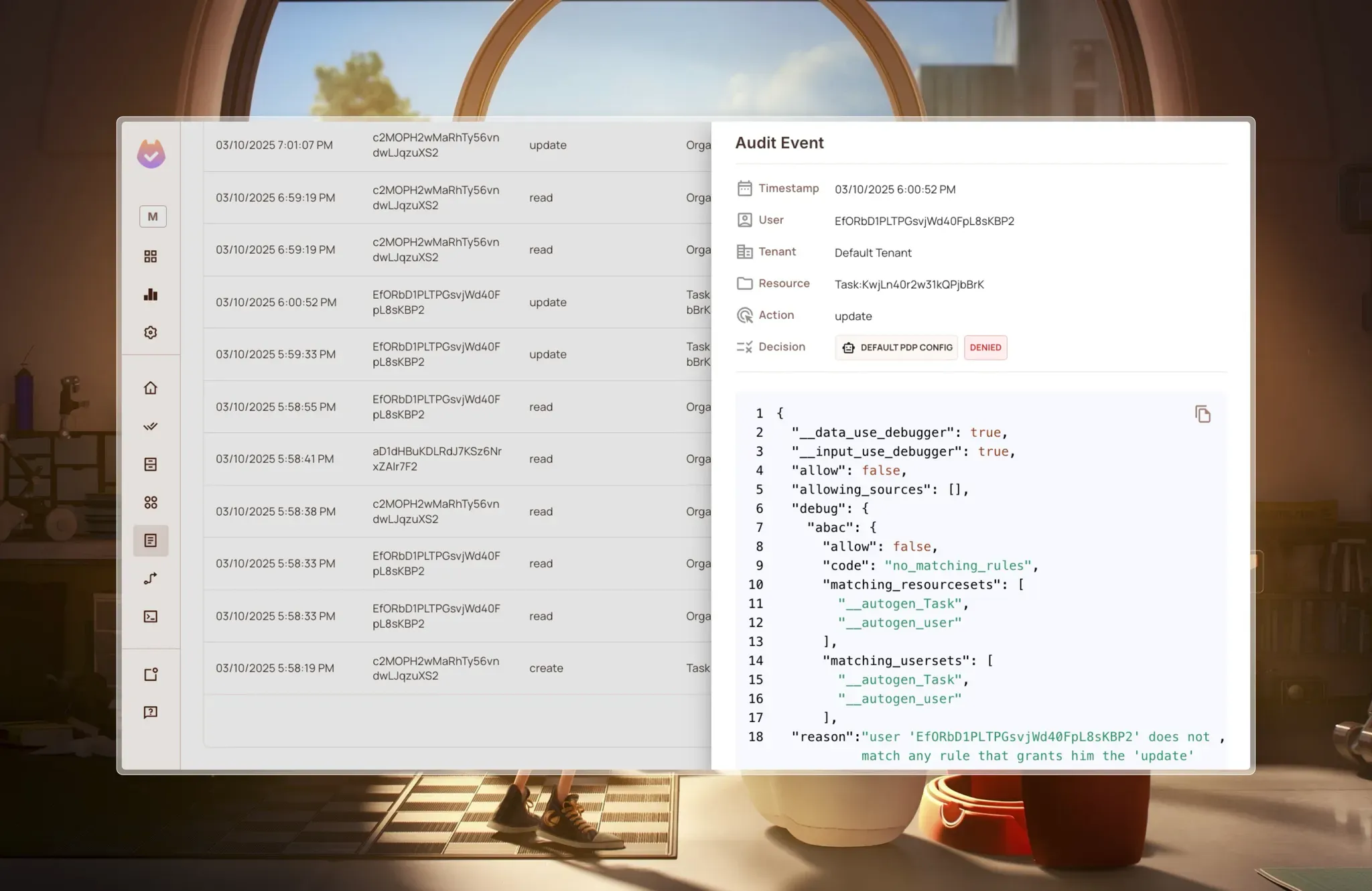
When permissions are permitted or denied, Permit.io doesn’t just block access—it explains why. The detailed view shows the exact configuration and rules that led to the denial, including the policy evaluation logic in JSON format. This transparency dramatically reduces debugging time when permissions aren’t working as expected.
Conclusion
This guide demonstrated how to implement a fine-grained authorization system by combining Firebase for authentication and storage with Permit.io.
We achieved this by:
- Setting up Firebase to manage user authentication and data storage.
- Setting up Permit.io to define and enforce access control through roles, permissions, and resource relationships.
- Implementing API routes in our Next.js frontend for permission checks, role assignments, and resource management.
By following this approach, we gained a scalable, multi-tenant security model that simplifies permission management and ensures users have the right level of access—without relying solely on Firebase security rules. This setup also makes future extensions and customizations easier as the application grows.
Resources