Implementing Authentication and Authorization in Next.js
Learn how to implement a complete authentication and authorization solution in Next.js with this step-by-step implementation guide.

- Share:

Loading
2938 Members
 Join Permit's Slack
Next.js is a popular framework for quickly and efficiently building server-side rendered web applications. However, it does not come with built-in authentication or authorization, leaving developers to implement these crucial features themselves.
Authentication and authorization are fundamental in application security, serving two distinct purposes:
Authentication answers the question, "Who are you?" It verifies a user's identity through credentials like passwords, social logins, or biometrics. In a Next.js application, authentication ensures that only legitimate users can access the application.
Authorization answers the question, "What are you allowed to do?". After users are authenticated, authorization determines what resources they can access and what actions they can perform. This creates a personalized experience where users only see and interact with what's relevant to their role.
In this article, I'll show you how to integrate two specialized services—Logto for authentication and Permit.io for authorization—into your Next.js application.
These tools work well together and provide a clean separation of concerns – Logto handles user identity and login flows, while Permit.io manages permissions and access control.
By the end of this article, you'll have a Next.js app with role-based permissions (RBAC), where users are rendered different UIs based on their roles.
Our app will consist of a dashboard with three user roles:
view, edit, and delete resourcesview and edit resourcesview the resourcesWe'll implement role-based access control to show different UI elements and functionality based on the user's role.
To follow along, you'll need:
We'll use:
Before diving into the code, let's clearly map out our Role-Based Access Control (RBAC) structure. This planning step is important for any successful authorization implementation.
Without proper planning, you might end up with inconsistent permission checks scattered throughout your components, making your application difficult to maintain and potentially introducing security vulnerabilities.
RBAC provides a structured approach to permissions that scales well as your application grows. By grouping permissions into roles and assigning users to those roles, you create a more manageable system than individually assigning permissions to each user.
Resources represent the entities in your application to which you want to control access.
Actions are the operations that can be performed on those resources.
In a typical application, resources could be anything from "Posts" and "Comments" to "Orders" and "Invoices." Actions could include view, create, edit, and delete.
For example, if you're building a content management system, your resources might include "Articles," "Users," and "Comments.”
In our case, we'll keep it simple and focus on a single resource: "Reports". This resource will have three actions: view, edit, and delete.
Let's define who can do what in our system:
| Role | Reports |
|---|---|
| admin | view, edit, delete |
| editor | view, edit |
| viewer | view |
This permission structure makes sense for our application, where:
Let’s start implementing!
Let's start by creating a new Next.js project:
npx create-next-app permitio-logto-demo
cd permitio-logto-demo
Next, let's install the packages we'll need:
npm install @logto/next permitio swr
Logto simplifies the authentication process with features like social logins, multi-factor authentication, and session management - meaning you don’t have to build any of these from scratch.
For Next.js applications specifically, Logto provides SDK support that integrates with the framework's routing system and server-side rendering capabilities.
To set up Logto for our Next.js application, follow these steps:
http://localhost:3000/api/logto/sign-in-callbackhttp://localhost:3000/These redirect URIs are crucial for the OAuth flow that Logto uses behind the scenes. After successful authentication, users will be redirected to the sign-in callback URL, and then to the post-sign-out URL after logging out.
Note down your App ID, App Secret, Endpoint, and Cookie Secret - we'll need these for configuration.
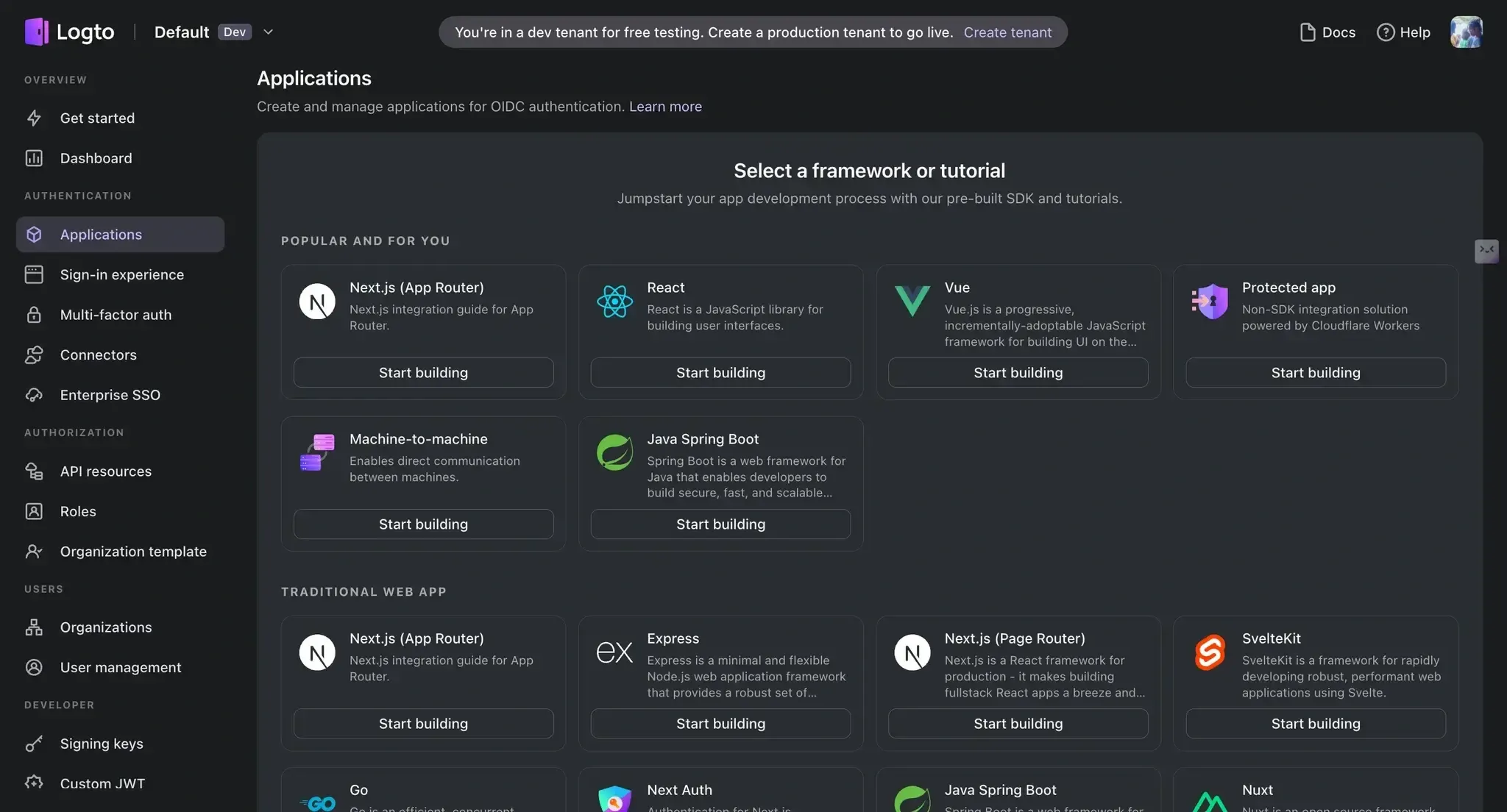
Creating a new application in Logto
Create a .env.local file in your project root with the following keys:
LOGTO_ENDPOINT=your-logto-endpoint
LOGTO_APP_ID=your-app-id
LOGTO_APP_SECRET=your-app-secret
LOGTO_COOKIE_SECRET=your-cookie-secret

NODE_ENV="development"
Now, let's set up a client for Logto. Create a new file called libraries/logto.js:
import LogtoClient, { UserScope } from "@logto/next";

export const logtoClient = new LogtoClient({
 scopes: [UserScope.Email],
 endpoint: process.env.LOGTO_ENDPOINT,
 appId: process.env.LOGTO_APP_ID,
 appSecret: process.env.LOGTO_APP_SECRET,
 baseUrl: "<http://localhost:3000>",
 cookieSecret: process.env.LOGTO_COOKIE_SECRET,
 cookieSecure: process.env.NODE_ENV === "production",
});
Next, we need to create the API routes for Logto. Create another file with the following code in pages/api/logto/[action].js:
import { logtoClient } from "../../../libraries/logto";

export default logtoClient.handleAuthRoutes();
That’s all you need!
With our authentication set up with Logto, we now need to handle authorization.
While you could hard-code authorization logic directly into your Next.js code, this approach usually isn’t scalable as your application grows. Changes to permission rules would require code modifications and redeployments, and there's no centralized way to manage or audit who has access to what.
Permit.io solves these challenges by providing a dedicated authorization service with a flexible policy engine. By separating authorization from your application code, you gain:
Let's set up Permit.io for our Next.js application:
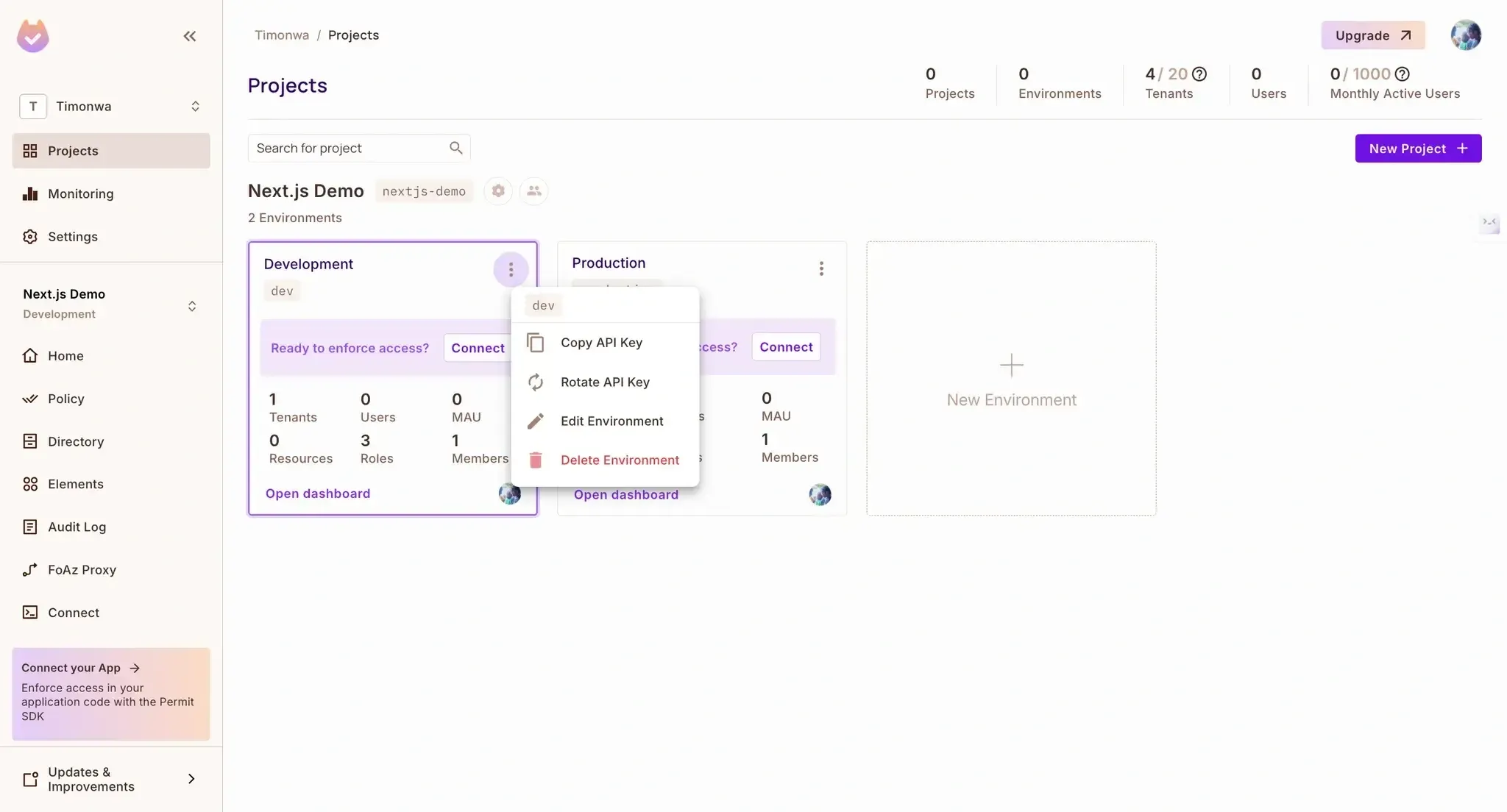
.env.local file:PERMIT_API_KEY=your-permit-api-keyObtaining a project api key in Permit.io
view, edit, and delete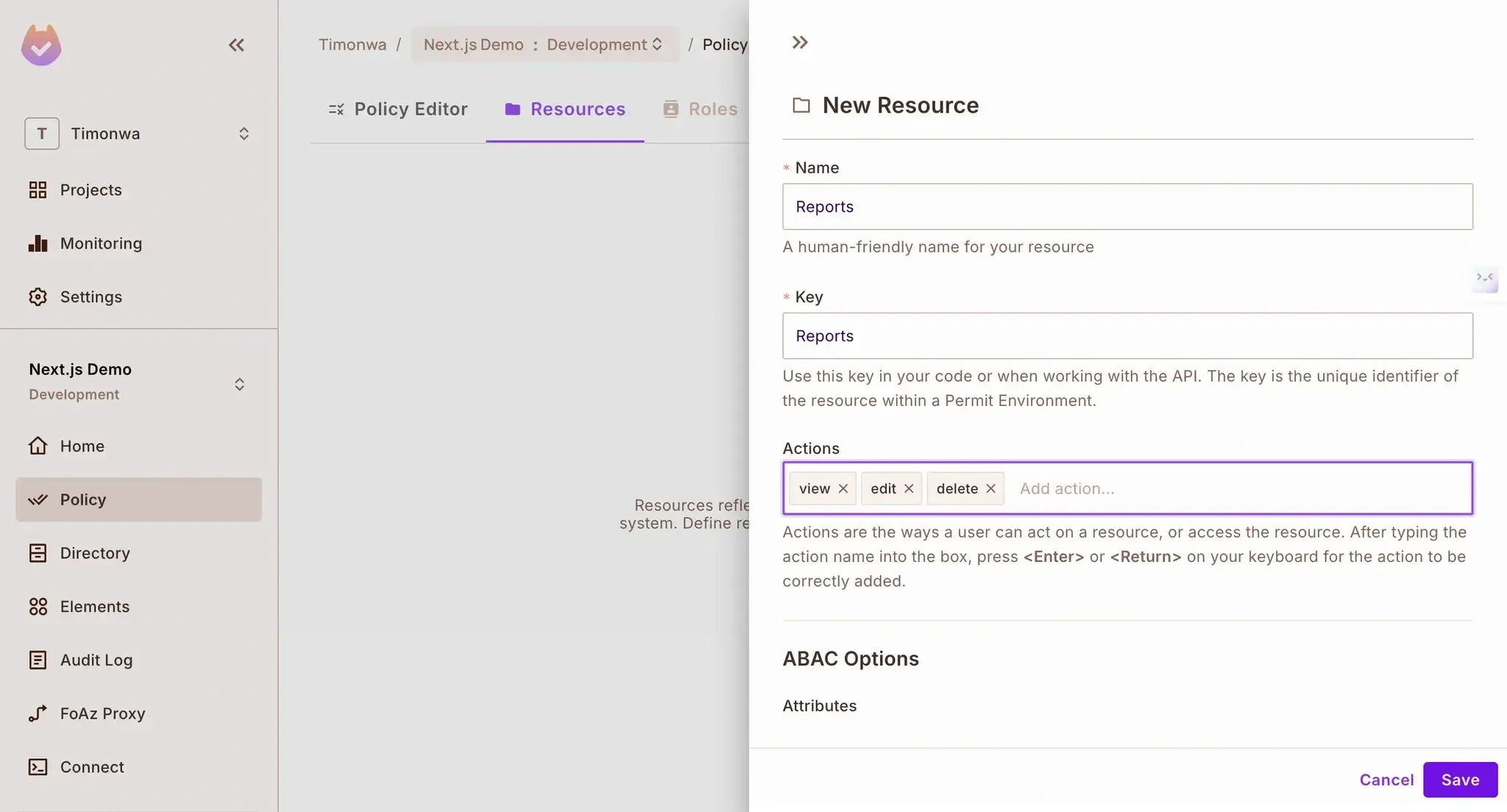
Creating a new resource in Permit.io
Navigate to "Policy" → "Roles"
Click the "Add Role" button
Add each of these roles one by one:
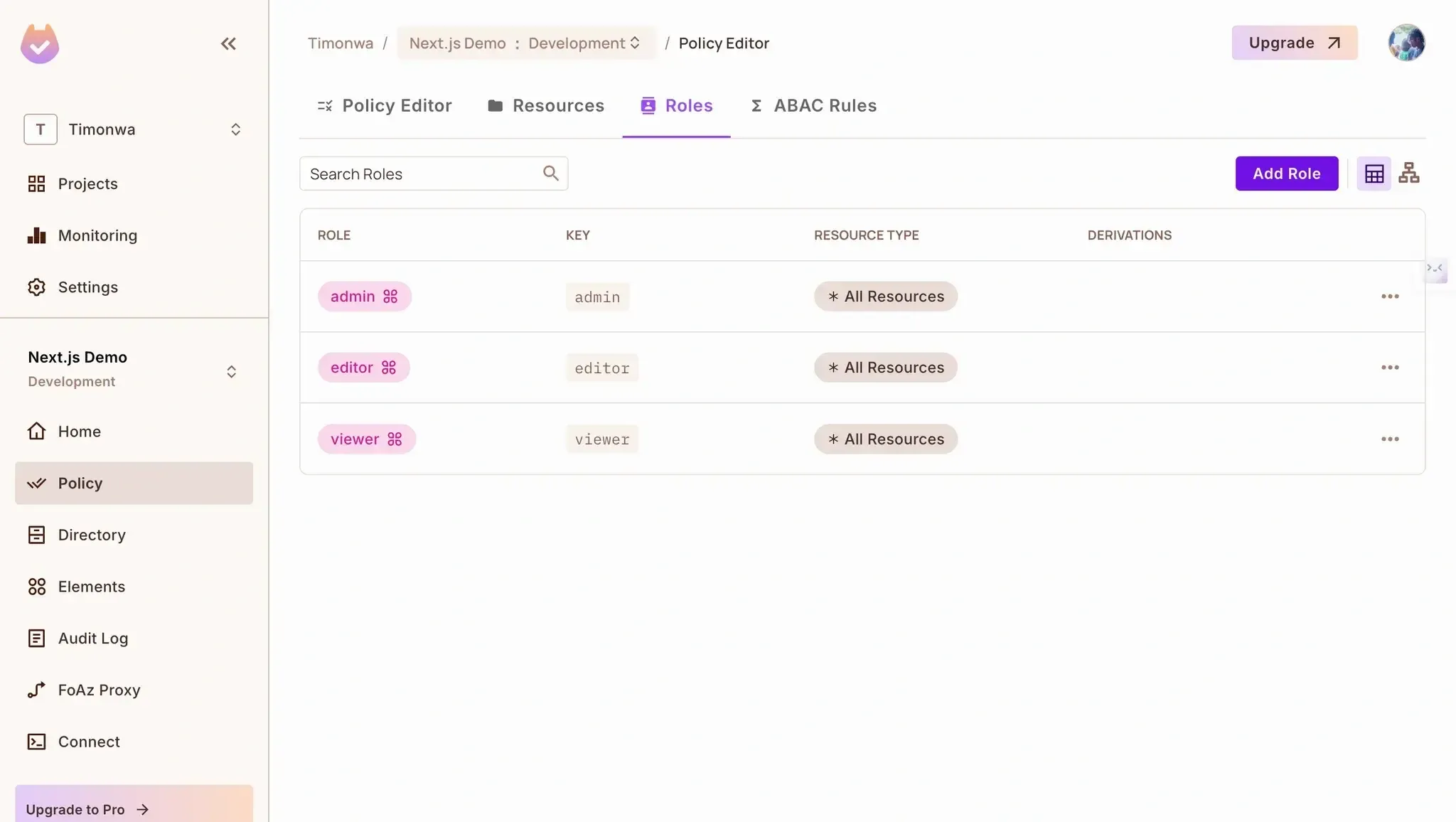
Creating roles in Permit.io
Navigate to "Policy" → "Policy Editor"
Set the permissions according to our planned structure:
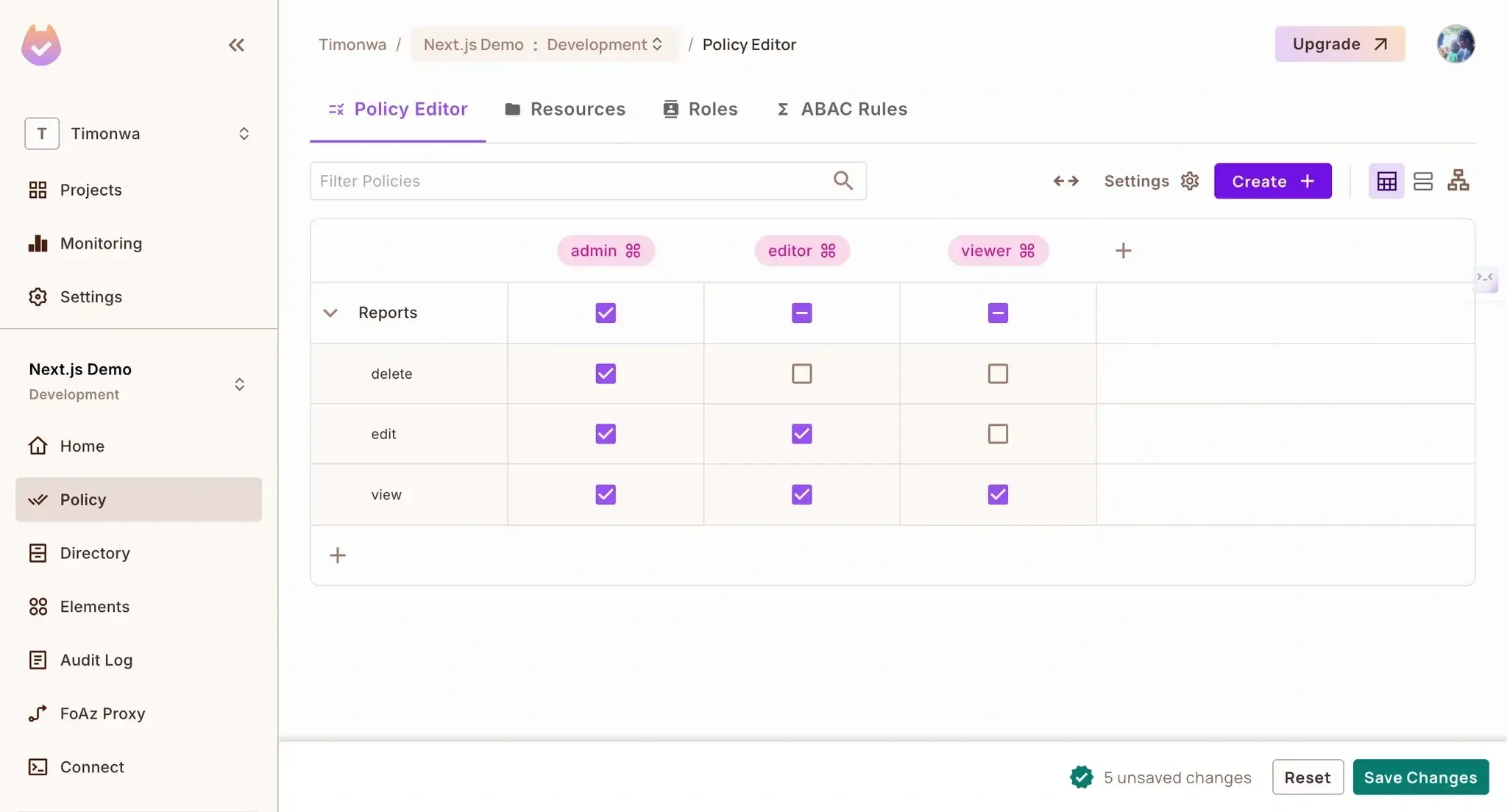
Creating policies in Permit.io
This configuration creates the foundation of your authorization system in Permit.io. Remember that you can always adjust these settings as your application evolves without changing your code.
Now, let's set up Permit.io in our Next.js application to enforce these permissions.
First, let's create a file for our Permit.io configuration.
Create a new file called libraries/permit.js:
const { Permit } = require("permitio");

// Initialize the Permit.io client
const permit = new Permit({
 pdp: "<https://cloudpdp.api.permit.io>",
 token: process.env.PERMIT_API_KEY,
});

// Sync a user with Permit.io
export const syncUserToPermit = async (
  userId,
  email,
  firstName,
  lastName,
  role
) => {
  // First, sync the user
  await permit.api.syncUser({
 key: userId,
 email: email || undefined,
 first_name: firstName || undefined,
 last_name: lastName || undefined,
 });

  // Then assign a role to the user (in the default tenant)
  if (role) {
    await permit.api.assignRole({
 user: userId,
 role: role,
 tenant: "default",
 });
 }

  return true;
};

// Check if a user has permission to perform an action on a resource
export const checkPermission = async (userId, action, resource) => {
  return await permit.check(userId, action, resource);
};
This file provides two key functions:
syncUserToPermit(): Syncs a user to Permit.io and assigns them a rolecheckPermission(): Checks if a user has permission to perform an actionCreate an API endpoint to check permissions. Create a new file called pages/api/check-permission.js:
import { checkPermission } from "../../libraries/permit";

export default async function handler(req, res) {
  const { userId, action, resource } = req.query;

  if (!userId || !action || !resource) {
    return res.status(400).json({ error: "Missing required parameters" });
 }

  try {
    const isPermitted = await checkPermission(userId, action, resource);
    return res.status(200).json({ isPermitted });
 } catch (error) {
    console.error("Error checking permission:", error);
    return res.status(500).json({ error: "Failed to check permission" });
 }
}
This endpoint will allow us to check if a user has permission to perform a specific action on a resource. It accepts userId, action, and resource as query parameters.
One of the challenges in implementing a complete auth system is keeping user data synchronized between authentication and authorization services.
In our Next.js application, we need to ensure that when users register through Logto, their information is also available in Permit.io for permission checks.
Rather than manually synchronizing users or building a complex background process, we can leverage Logto's webhook system to trigger user synchronization when registration events occur automatically.
Let's create a new file called pages/api/webooks/logto.js to automatically sync new users to Permit.io upon signup.
import { syncUserToPermit } from "../../../libraries/permit";

export default async function handler(req, res) {
  const { event, user } = req.body;

  if (event === "PostRegister") {
    try {
      let role = "viewer"; // Default role
      if (user.primaryEmail) {
        if (user.primaryEmail.includes("admin")) {
          role = "admin";
 } else if (user.primaryEmail.includes("editor")) {
          role = "editor";
 }
 }

      // Sync user with Permit.io
      await syncUserToPermit(
        user.id,
        user.primaryEmail,
        user.name,
        undefined,
        role
 );

      return res.status(200).json({ success: true });
 } catch (error) {
      console.error("Error syncing user:", error);
      return res.status(500).json({ error: "Failed to sync user" });
 }
 }

  return res.status(200).json({ message: "Event ignored" });
}
This Next.js API route acts as a webhook endpoint that Logto will call whenever a new user registers. We're using a simple email-based role assignment strategy here.
In a real-world app, you might use more sophisticated rules based on user attributes, organization membership, or external data sources.
Once this webhook is configured in the Logto console, the synchronization happens automatically, with no additional code required in your main application flow. This keeps your Next.js components focused on rendering UI rather than managing user synchronization logic.
We need to configure the webhook in Logto to call our endpoint when a new user registers. In your Logto console, go to the "Webhooks" section and add a new webhook with the URL: http://your-server-url/api/webhooks/logto. Make sure to select the PostRegister event.
This webhook will be triggered whenever a new user registers and automatically syncs the user with Permit.io.
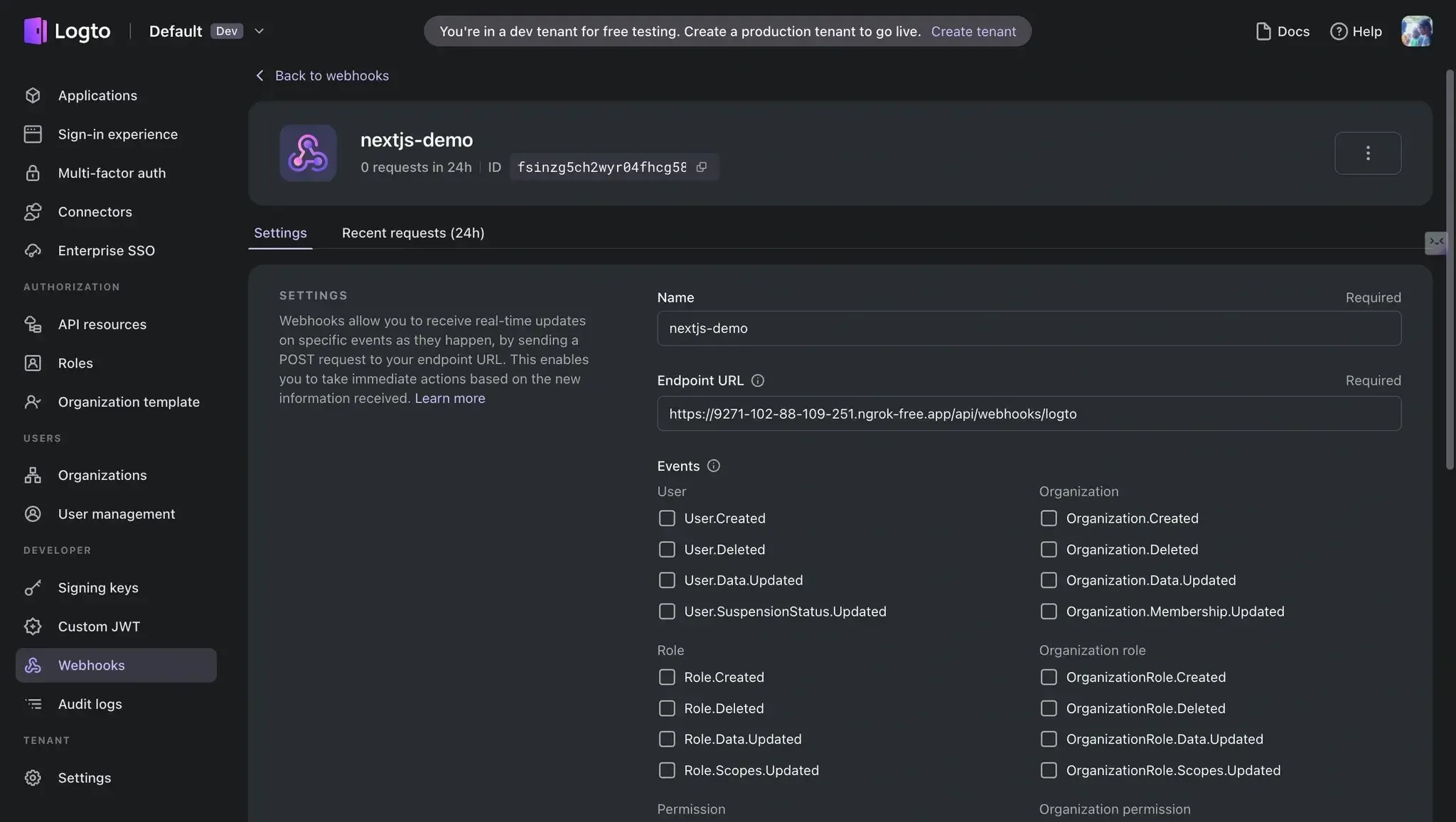
Registering a webhook in Logto
Note that you have to host this webhook endpoint somewhere accessible to Logto. You can use tools like ngrok to expose your local server to the internet for local development. Once you have a public URL, you can use it to configure the webhook in your Logto console.
Authorization decisions are often used in React components to determine what UI elements to render. While we could make permission checks directly in each component, this would lead to duplicated code and potential inconsistencies.
React hooks provide a perfect solution for this problem. By creating a custom usePermissions hook, we can:
Let's create this hook in a new file called hooks/usePermissions.js to handle our permission checks:
import { useState, useEffect } from "react";

export function usePermissions(userId) {
  const [permissions, setPermissions] = useState({
    "view:Reports": false,
    "edit:Reports": false,
    "delete:Reports": false,
 });
  const [loading, setLoading] = useState(true);
  const [error, setError] = useState(null);

  useEffect(() => {
    if (!userId) {
      setLoading(false);
      return;
 }

    const checkPermission = async url => {
      try {
        const response = await fetch(url);
        if (!response.ok) {
          console.warn(`Permission check failed: ${response.status}`);
          return { allowed: false };
 }
        const contentType = response.headers.get("content-type");
        if (!contentType || !contentType.includes("application/json")) {
          console.warn("Invalid response format");
          return { allowed: false };
 }
        return response.json();
 } catch (err) {
        console.error("Permission check error:", err);
        return { allowed: false };
 }
 };

    // Function to check all permissions we need
    const checkPermissions = async () => {
      try {
        setError(null);
        const results = await Promise.all([
          checkPermission(
            `/api/check-permission?userId=${userId}&action=view&resource=Reports`
 ),
          checkPermission(
            `/api/check-permission?userId=${userId}&action=edit&resource=Reports`
 ),
          checkPermission(
            `/api/check-permission?userId=${userId}&action=delete&resource=Reports`
 ),
 ]);

        setPermissions({
          "view:Reports": results[0].isPermitted,
          "edit:Reports": results[1].isPermitted,
          "delete:Reports": results[2].isPermitted,
 });
 } catch (error) {
        console.error("Error checking permissions:", error);
        setError(error.message);
        setPermissions({
          "view:Reports": false,
          "edit:Reports": false,
          "delete:Reports": false,
 });
 } finally {
        setLoading(false);
 }
 };

    checkPermissions();
 }, [userId]);

  // Helper function to easily check permissions
  const can = (action, resource) => {
    return permissions[`${action}:${resource}`] || false;
 };

  return { permissions, loading, error, can };
}
For this demo, we're checking the permissions for the "Reports" resource. It returns an object containing the permissions, a loading state, an error if the request failed, and a function can that takes two arguments: the action (like view, edit, or delete) and the resource (in our case, Reports). The can function returns a boolean indicating whether the user has that permission.
This hook will be used in our dashboard component to conditionally render UI elements based on the user's permissions. You would likely have multiple resources and actions in a real-world application, so you should create a better structure to handle that.
With a proper authorization system, we can create dynamic UIs that adapt to user permissions. Instead of creating separate pages for different user roles, we can use conditional rendering to show or hide UI elements based on what the user can do.
Update our pages/index.jsx file to create a dashboard that uses the usePermissions hook to render UI elements based on the user's permissions conditionally:
import { useEffect } from "react";
import { useRouter } from "next/router";
import useSWR from "swr";
import { usePermissions } from "../hooks/usePermissions";

export default function Dashboard() {
  const router = useRouter();
  const fetcher = url => fetch(url).then(r => r.json());
  const { data, error } = useSWR("/api/logto/user", fetcher);

  // Get permissions for the current user
  const { can, loading: permissionsLoading } = usePermissions(
    data?.claims?.sub
 );

  // Redirect to login if not authenticated
  useEffect(() => {
    if (data && !data.isAuthenticated && !error) {
      router.push("/login");
 }
 }, [data, error, router]);

  const handleSignOut = () => {
    window.location.assign("/api/logto/sign-out");
 };

  if (error) return <div>Error loading user data</div>;
  if (!data || permissionsLoading) return <div>Loading...</div>;
  if (!data?.isAuthenticated) return null;

  return (
 <div className="min-h-screen bg-gray-100">
 <nav className="bg-white shadow px-6 py-4">
 <div className="flex justify-between">
 <h1 className="text-xl font-bold">Reports Dashboard</h1>
 <div className="flex items-center space-x-4">
 <span>{data.claims?.email || data.claims?.sub}</span>
 <button
              onClick={handleSignOut}
              className="px-3 py-1 bg-gray-200 rounded hover:bg-gray-300">
 Sign out
 </button>
 </div>
 </div>
 </nav>

 <main className="max-w-7xl mx-auto py-6 px-4">
 <h2 className="text-2xl font-bold mb-6">Your Reports</h2>

        {can("view", "Reports") ? (
 <div className="bg-white shadow rounded-lg p-6">
 <div className="flex justify-between items-center mb-4">
 <h3 className="text-lg font-medium">Monthly Sales Report</h3>
 <div className="flex space-x-2">
                {can("edit", "Reports") && (
 <button className="px-3 py-1 bg-blue-500 text-white rounded hover:bg-blue-600">
 Edit
 </button>
 )}

                {can("delete", "Reports") && (
 <button className="px-3 py-1 bg-red-500 text-white rounded hover:bg-red-600">
 Delete
 </button>
 )}
 </div>
 </div>
 <p className="text-gray-600">
 This report shows the monthly sales data for your organization.
 </p>
 </div>
 ) : (
 <div className="text-center p-6 bg-gray-100 rounded-lg">
 You don't have permission to view reports.
 </div>
 )}
 </main>
 </div>
 );
}
Finally, let's create a login page. Create a new file called pages/login.jsx:
import { useEffect } from "react";
import { useRouter } from "next/router";
import useSWR from "swr";

export default function Login() {
  const router = useRouter();
  const fetcher = url => fetch(url).then(r => r.json());
  const { data, error } = useSWR("/api/logto/user", fetcher);

  useEffect(() => {
    if (data?.isAuthenticated) {
      router.push("/");
 }
 }, [data, router]);

  const handleSignIn = () => {
    window.location.assign("/api/logto/sign-in");
 };

  if (error) return <div>Error loading user data</div>;
  if (!data) return <div>Loading...</div>;

  return (
 <div className="min-h-screen flex items-center justify-center bg-gray-100">
 <div className="max-w-md w-full space-y-8 p-10 bg-white rounded-lg shadow-md">
 <div className="text-center">
 <h1 className="text-2xl font-bold">Welcome to Reports Dashboard</h1>
 <p className="mt-2 text-gray-600">Please sign in to continue</p>
 </div>
 <button
          onClick={handleSignIn}
          className="w-full flex justify-center py-2 px-4 border border-transparent rounded-md shadow-sm text-sm font-medium text-white bg-blue-600 hover:bg-blue-700 focus:outline-none">
 Sign in with Logto
 </button>
 </div>
 </div>
 );
}
Now that everything is set up, let's run the application and see how our authorization system works in practice:
npm run dev
Open your browser and navigate to http://localhost:3000/login. You'll see the login page where you can either log in with an existing account or create a new one.
To test our permission system properly, you should create three different accounts:
Upon signing in, you'll be redirected to the dashboard, where you'll see the reports section. The UI will dynamically adapt based on your permissions:
Sorry, your browser doesn't support embedded videos.
An ordinary user’s view of the reports dashboard shows that no action buttons are enabled, demonstrating role-based component rendering for users with full permissions.
Sorry, your browser doesn't support embedded videos.
An editor’s view of the reports dashboard shows only one action button (Edit) enabled, demonstrating role-based component rendering for users with full permissions.
Sorry, your browser doesn't support embedded videos.
An admin view of the reports dashboard shows all action buttons (Edit and Delete) enabled, demonstrating role-based component rendering for users with full permissions.
Let's look at how our permission system affects what each user can see:
In our Permit.io console, we can verify that users are properly synced with their assigned roles:
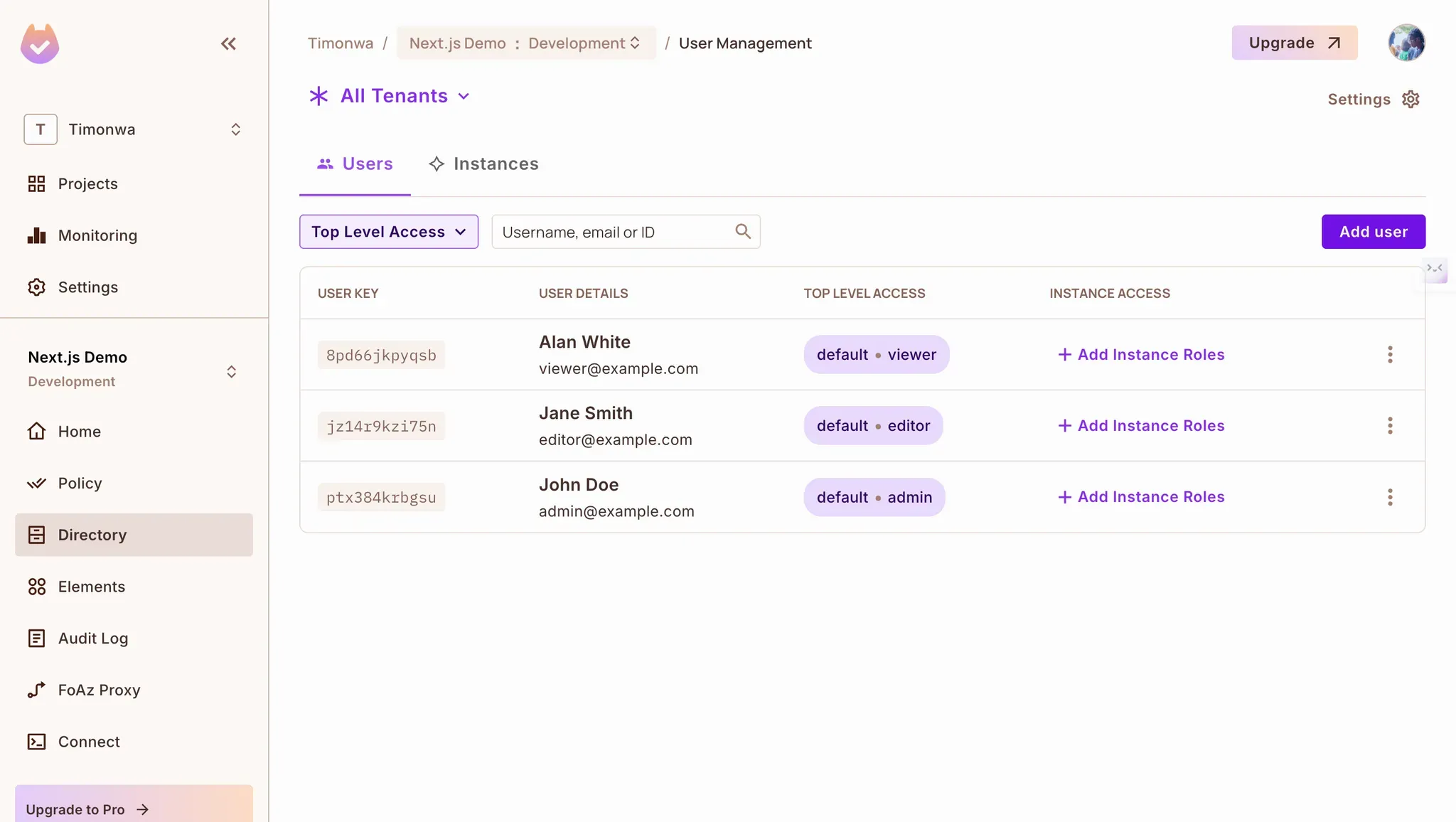
Logto Users Synced to Permit.io with Role Assignments
The Permit.io dashboard provides complete visibility into your authorization system. It allows you to see all registered users, their role assignments, and even audit logs of permission checks.
Audit logs provide a way to track who did what on your system. You can see what resources they tried to access, at what time, and if they were granted access. This makes it easy to troubleshoot any permission issues and adjust your authorization rules as needed.
What's particularly powerful about this setup is that you can change a user's permissions in the Permit.io dashboard, and the changes will immediately affect what they can access in your application - no code changes or deployments required!
In this article, we've built a Next.js application that uses Logto for authentication and Permit.io for authorization. This combination provides a powerful, flexible solution for implementing role-based access controls without building everything from scratch.
The key benefits of this approach:
This approach gives you a solid foundation for building secure applications with fine-grained access controls, allowing you to focus on building features instead of reinventing authentication and authorization.
Want to learn more about Authorization? Join our Slack community, where there are hundreds of devs building and implementing authorization.

Application authorization enthusiast with years of experience as a customer engineer, technical writing, and open-source community advocacy. Comunity Manager, Dev. Convention Extrovert and Meme Enthusiast.